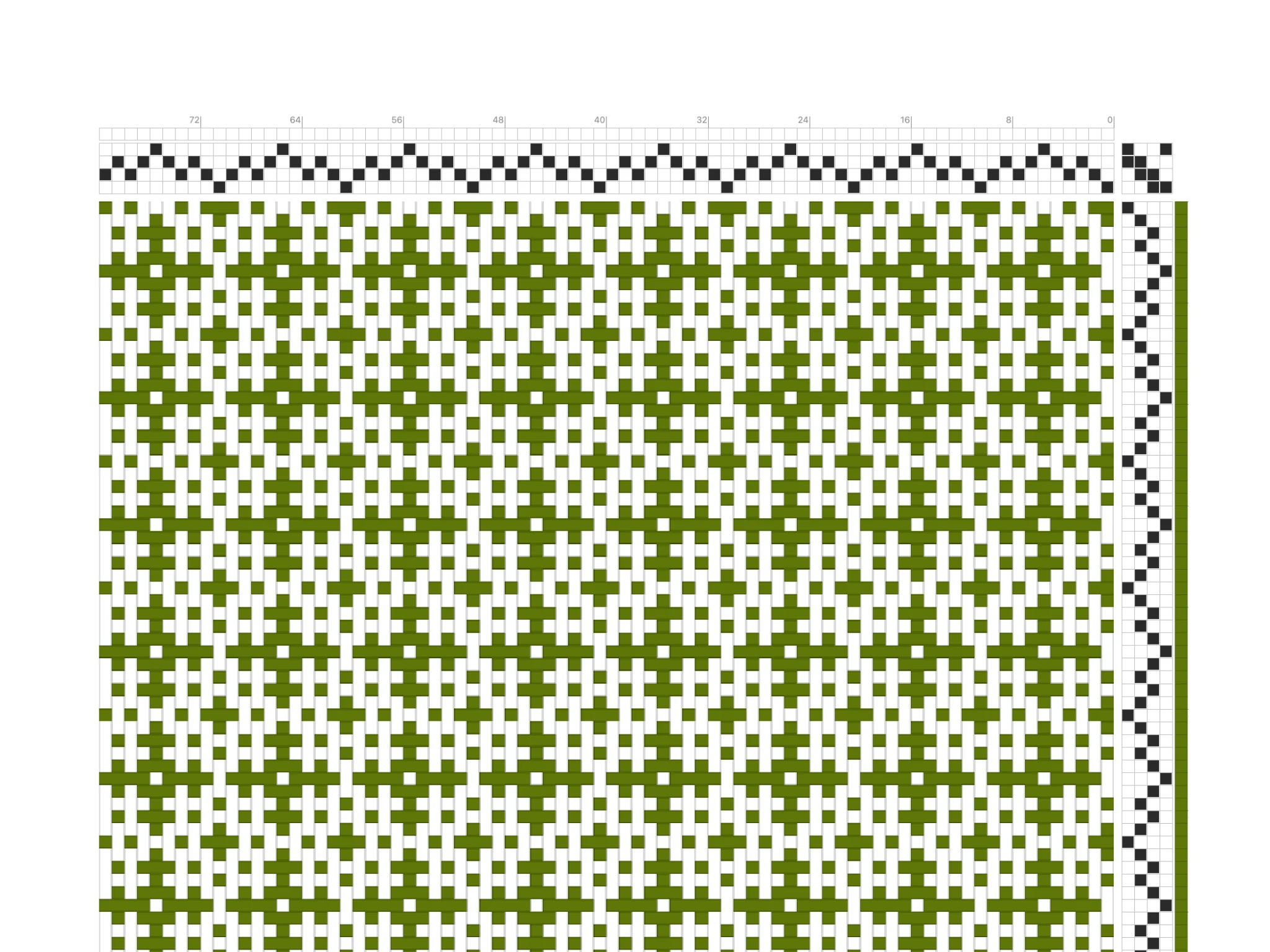
¡Bienvenido a Bower! En este tutorial te apoyarás en las habilidades que aprendiste antes para diseñar más rápido y crear proyectos de tejido más complejos.
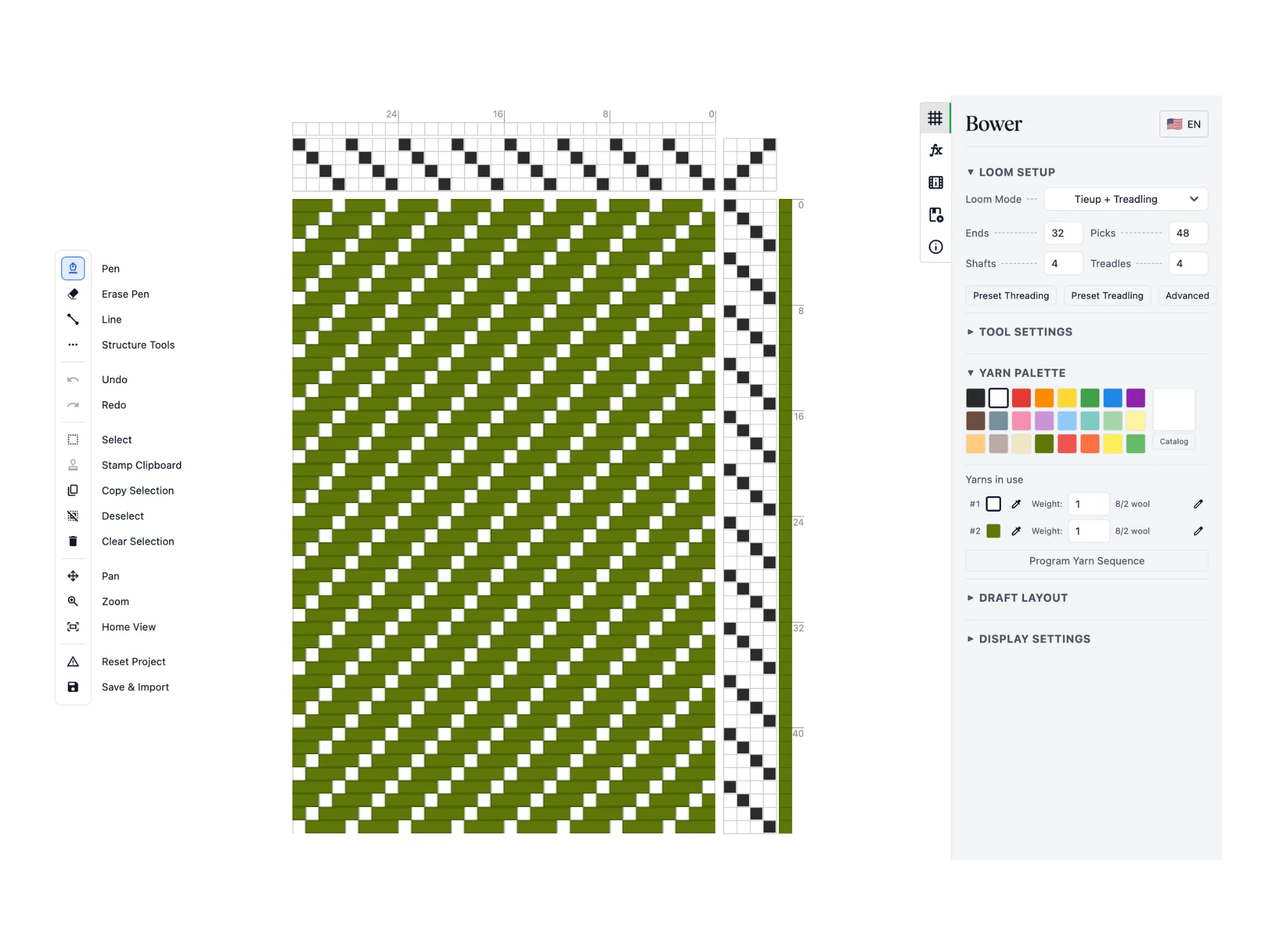
Cubriremos las herramientas de selección, portapapeles y estructura, que te ayudarán enormemente.
Recuerda que esta es tu pantalla inicial. La interfaz de Bower está organizada en una barra de herramientas a la izquierda, el editor en el centro y un panel de propiedades a la derecha.
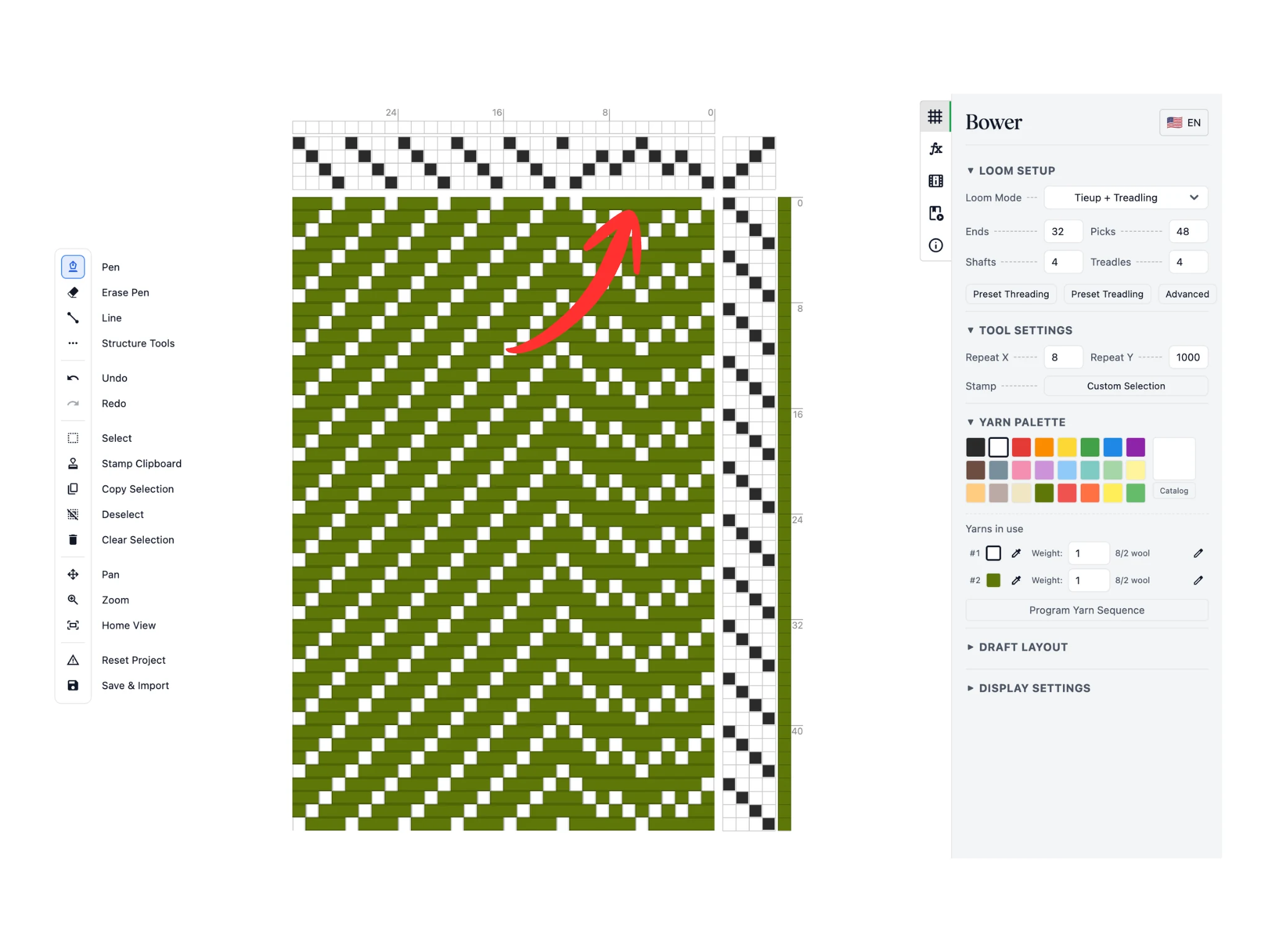
Empecemos primero por crear un remetido interesante. Con la herramienta Lápiz, dibuja en la sección de remetido del editor. He creado una secuencia 1-2-3-2-3-4-3-2-3-2-1 para una sarga a punta en zigzag.
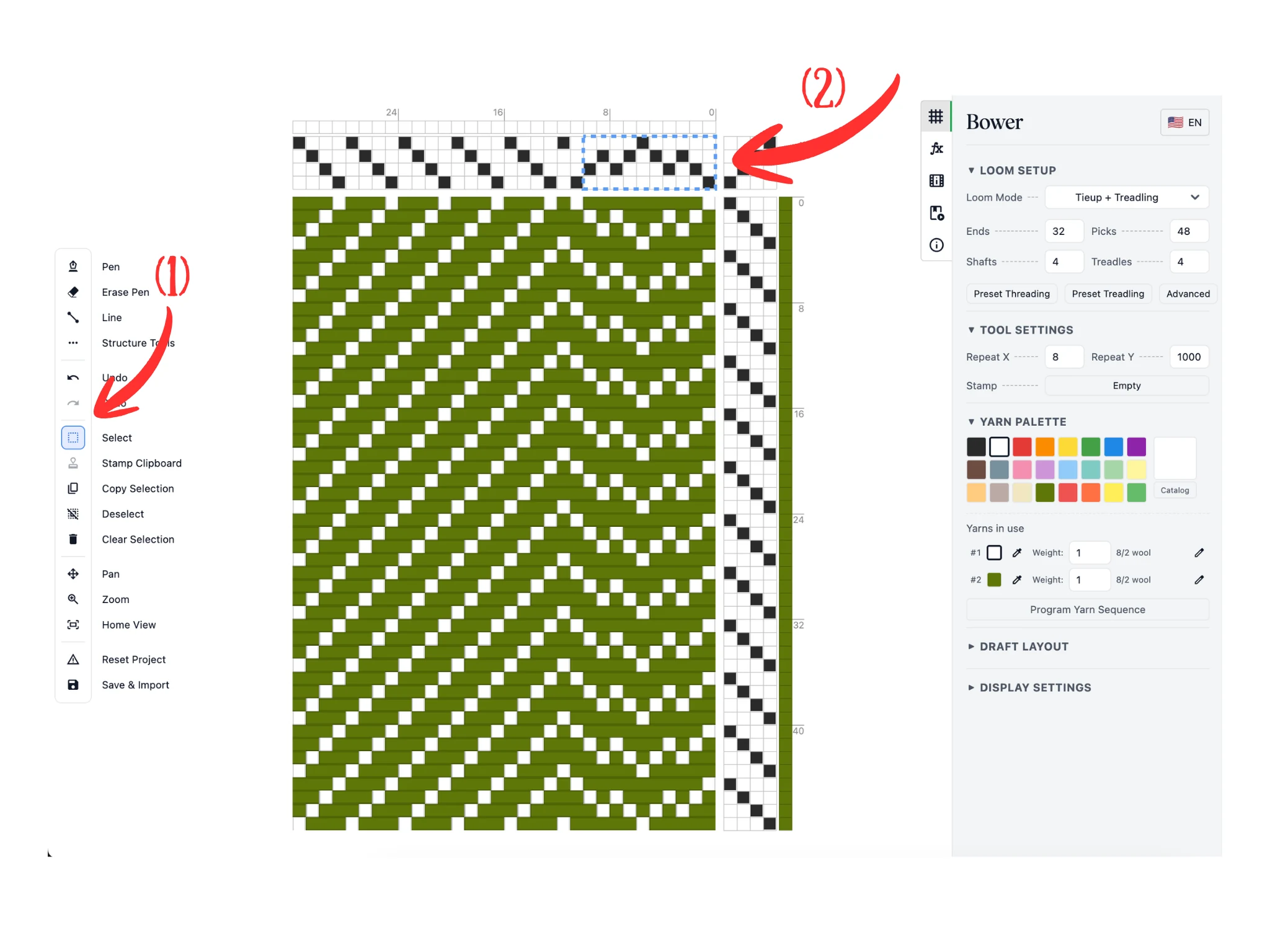
A continuación, (1) elige la herramienta Selección en la barra de herramientas a la izquierda.
Puedes (2) hacer clic izquierdo y arrastrar (lo que crea un recuadro de selección azul punteado) en la sección de remetido del editor. Todos los datos dentro del recuadro azul punteado se consideran seleccionados.
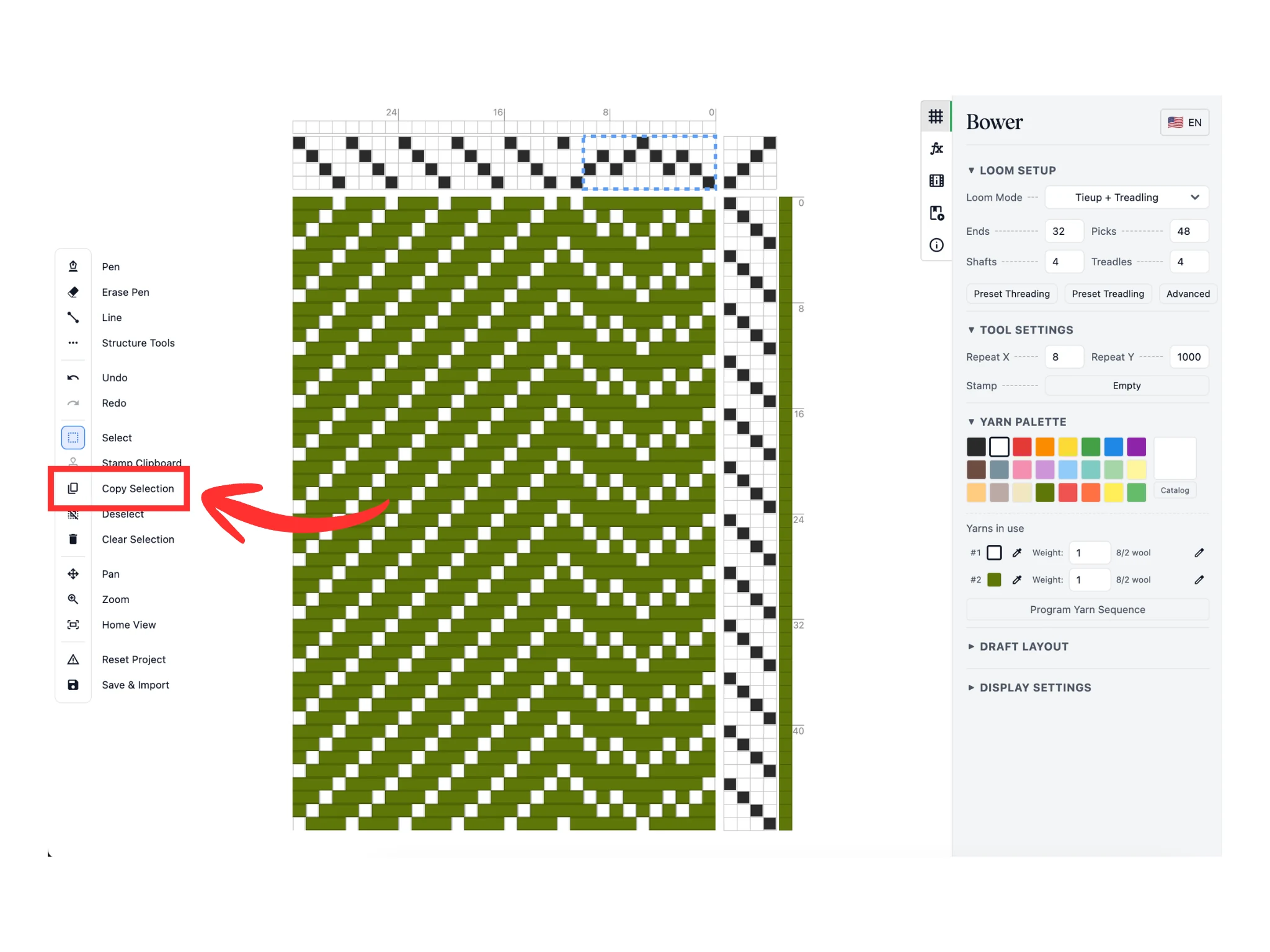
A continuación, copia la selección al portapapeles con el botón de la herramienta Copiar selección. Una vez que hagas clic, ten en cuenta que el software cambiará automáticamente a la herramienta Sello.
El portapapeles interno del software es donde guarda una copia de los datos del editor. Solo puede guardar una copia de una selección a la vez.
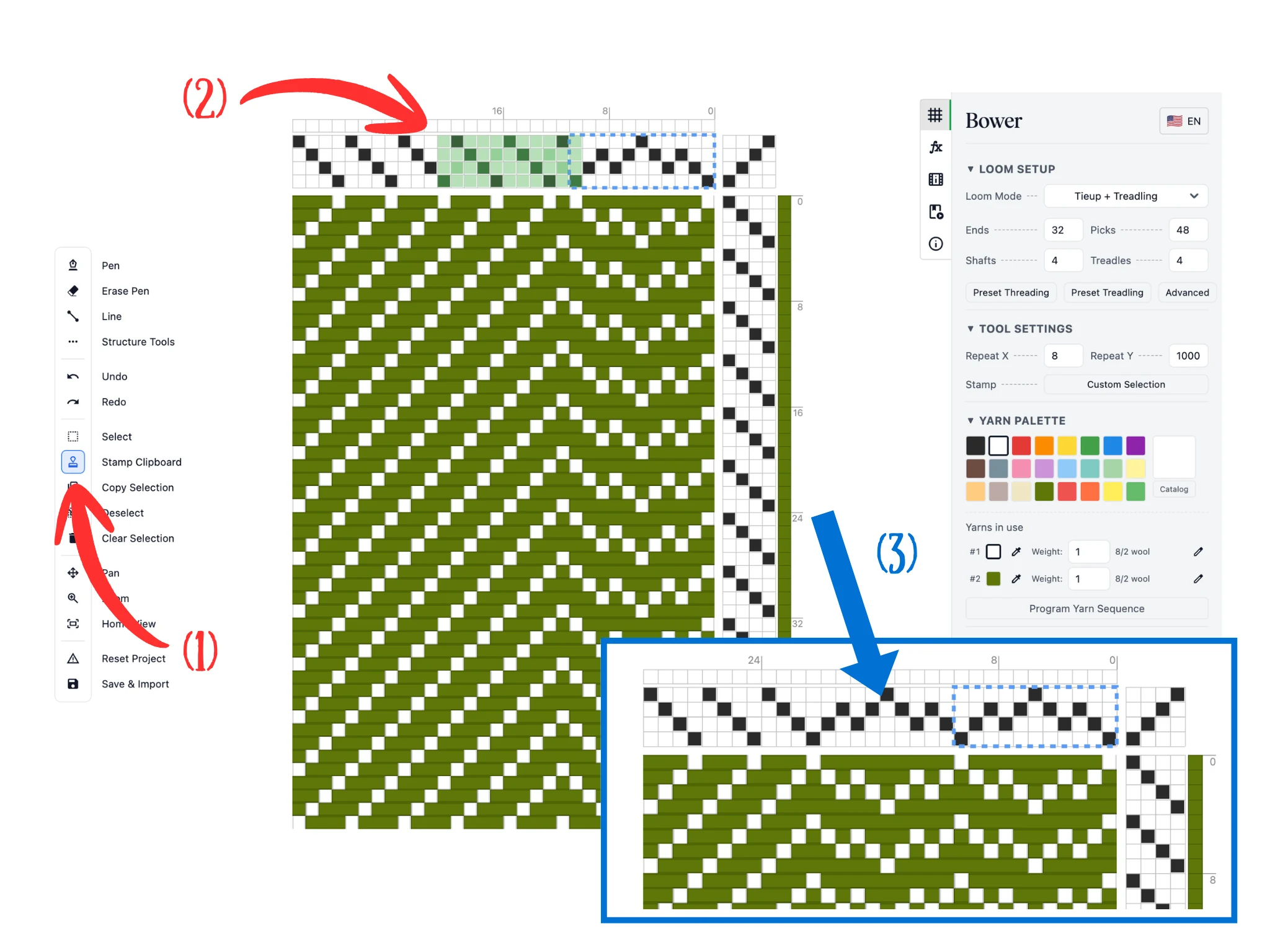
Ahora deberías tener activa la herramienta Sello (1). De nuevo, después de hacer clic en Copiar selección, el software te cambia automáticamente a la herramienta Sello.
Cuando pasas el mouse sobre la sección de remetido (2), puedes ver un rectángulo verde tenue que es una vista previa de los datos del portapapeles. Coloca el mouse en la posición deseada y haz clic para sellar los datos del portapapeles en el remetido.
Puedes ver el resultado en (3). Esto te permite copiar y pegar secuencias complejas donde quieras en el diseño en lugar de redibujarlas cada vez. Esto es muy útil para proyectos grandes con cientos de hilos.
Nota: si usas una tableta o iPhone sin la función de pasar el cursor por encima, no verás la vista previa hasta que hagas clic izquierdo y arrastres. La herramienta Sello sella cuando sueltas el dedo o el lápiz óptico.
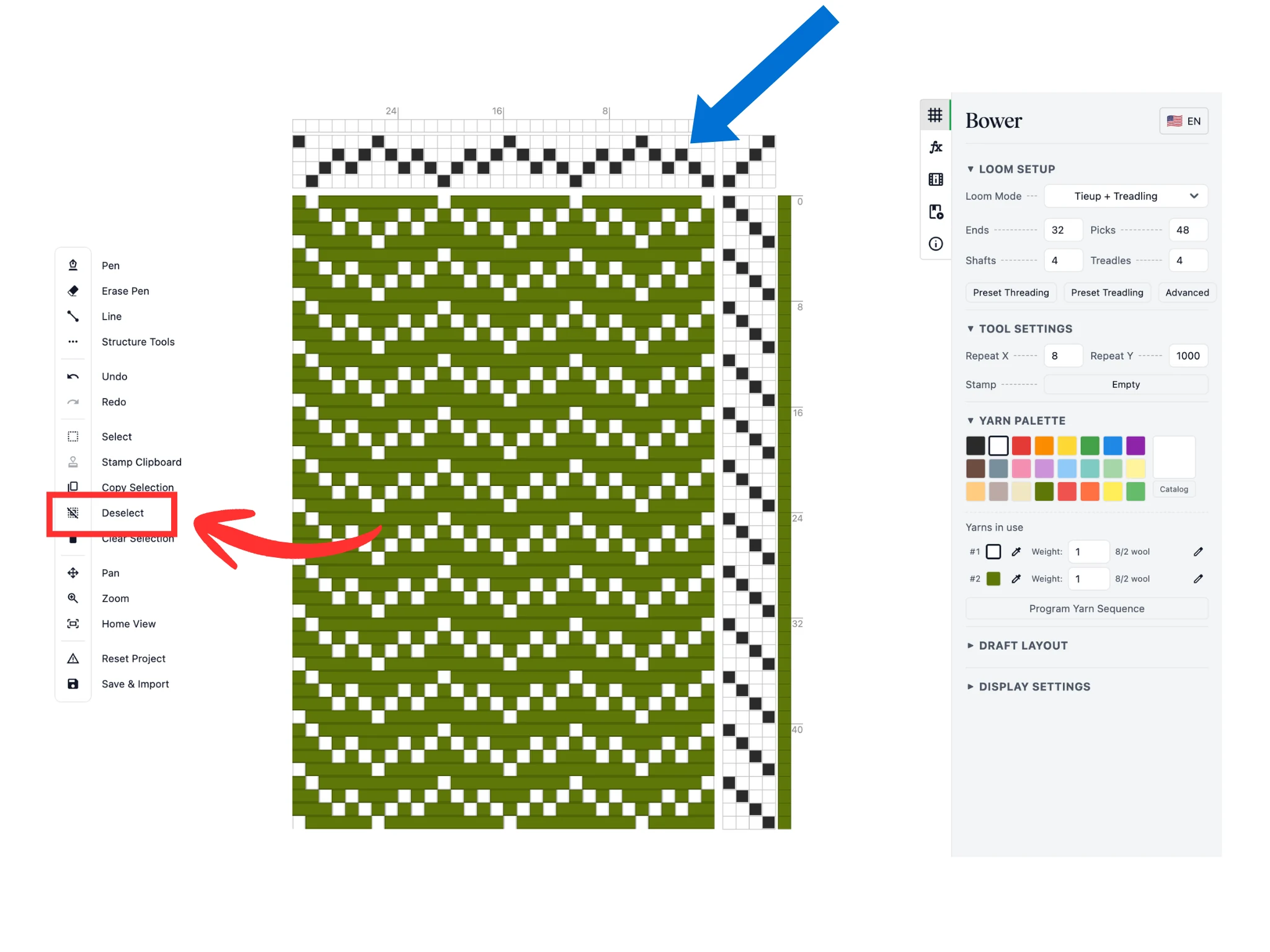
Para quitar el recuadro de selección, haz clic en el botón Deseleccionar en la barra de herramientas. Puedes ver que el rectángulo azul punteado desaparece.
En resumen, las herramientas Selección, Copiar selección, Sello y Deseleccionar te dan el flujo estándar de copiar y pegar en el software Bower. Estas herramientas funcionan en las secciones de remetido, amarre y pedaleo del editor.
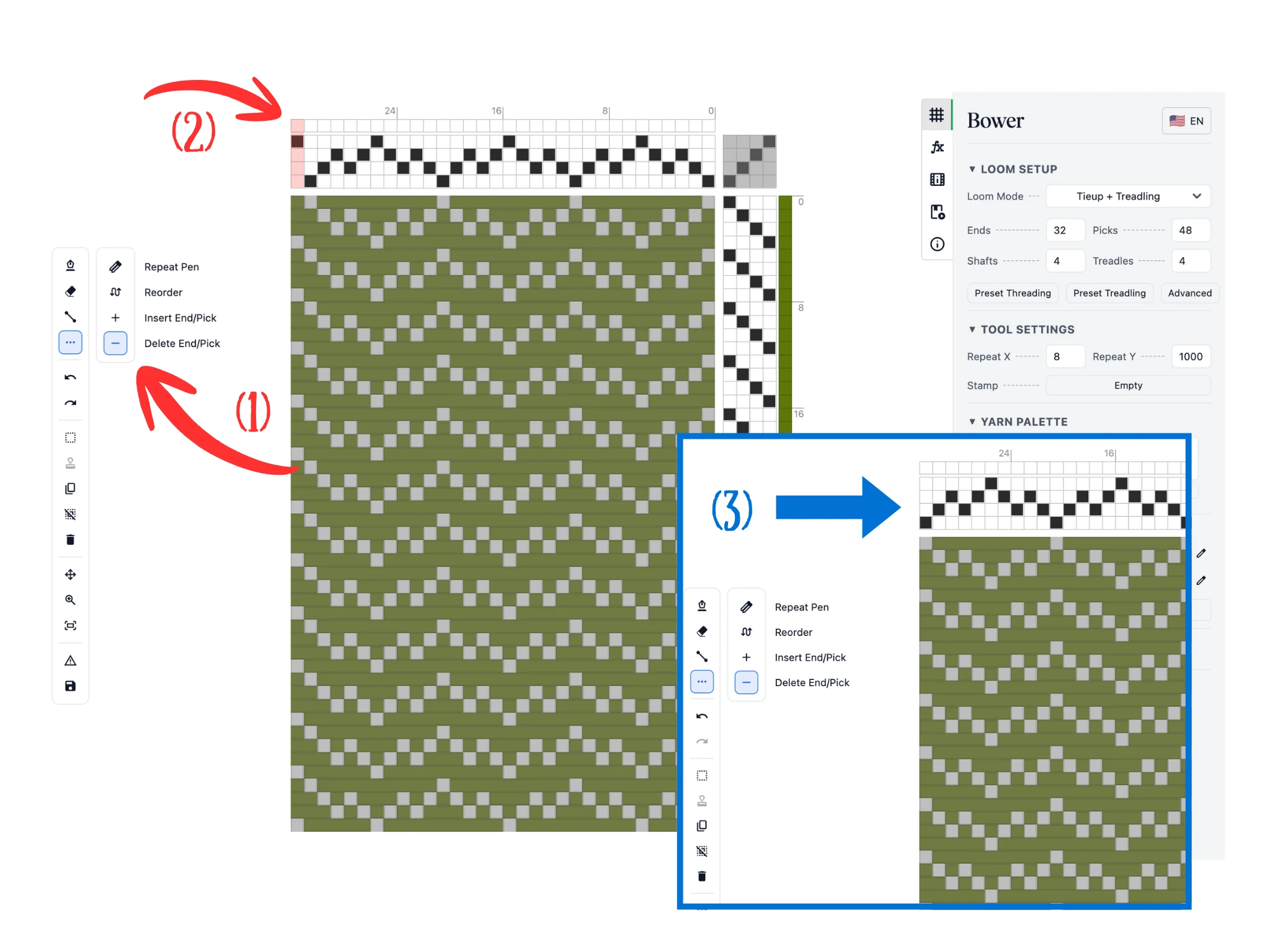
A continuación, haz clic en el botón Herramientas de estructura en la barra de herramientas, que abre una subbarra. Elige la herramienta Eliminar hilo/pasada (1).
Cuando pasas el mouse sobre el remetido (2), la columna del hilo bajo el cursor se resaltará en rojo. Al hacer clic, eliminará ese hilo. También puedes hacer clic izquierdo y arrastrar para eliminar un rango de hilos.
Como puedes ver en (3), la columna completa del hilo ya no está. Esta herramienta funciona de forma similar para el pedaleo, salvo que elimina pasadas, es decir, filas en el editor.
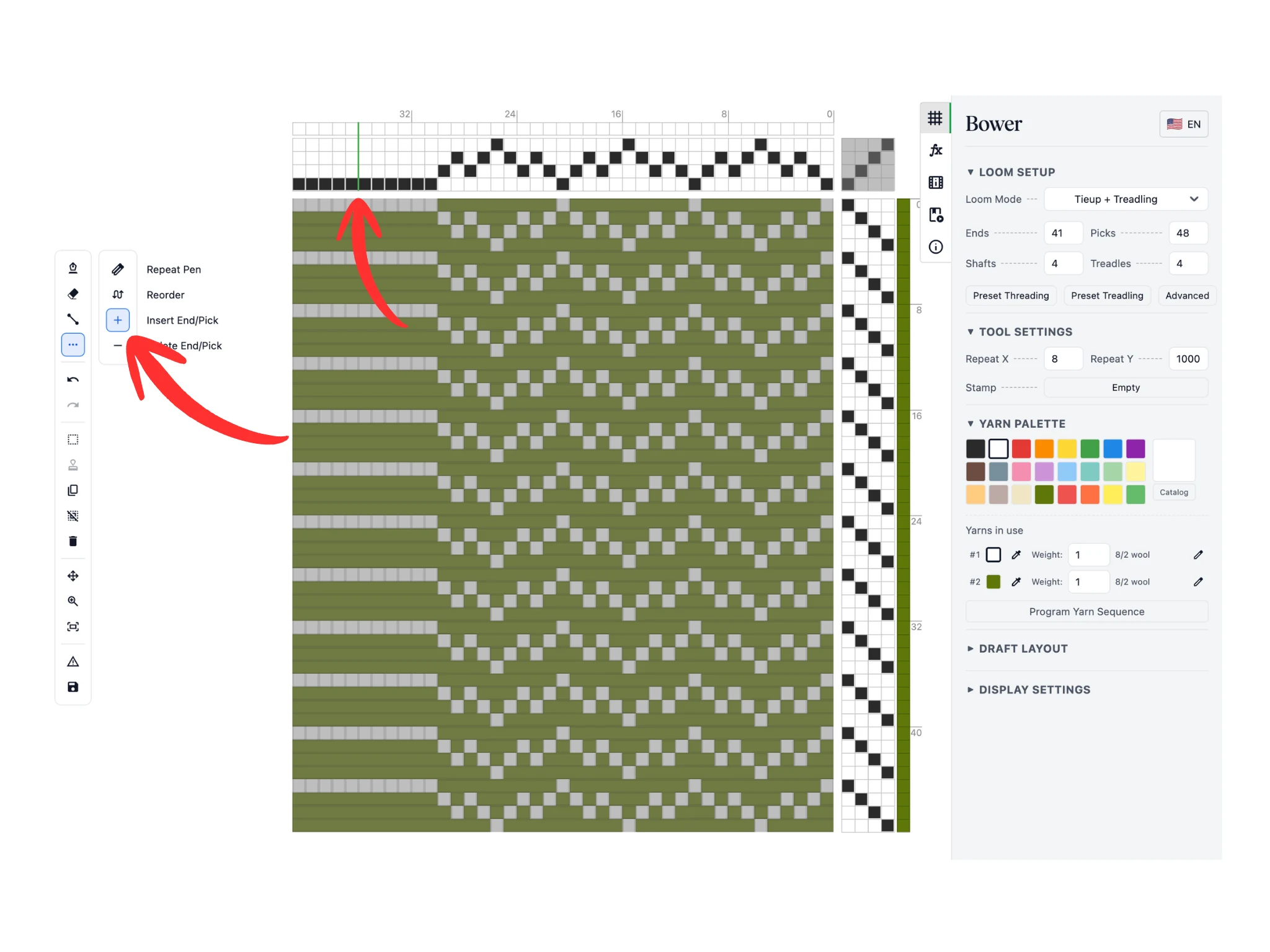
Mantén abiertas las Herramientas de estructura en la barra de herramientas y, en la subbarra, elige la herramienta Insertar hilo/pasada.
Cuando pasas el mouse sobre el remetido (2), aparece una fina línea verde entre dos hilos. Al hacer clic, insertará un hilo entre los dos hilos.
En el tutorial, hice clic con la herramienta Insertar hilo/pasada 10 veces para insertar suficientes hilos y añadir otra copia de mi secuencia de sarga a punta en zigzag. La herramienta funciona de forma similar en la sección de pedaleo para insertar pasadas.
Como puedes ver, las herramientas Eliminar e Insertar hilo/pasada te ayudan a editar el centro de las secuencias de remetido/pedaleo con facilidad.
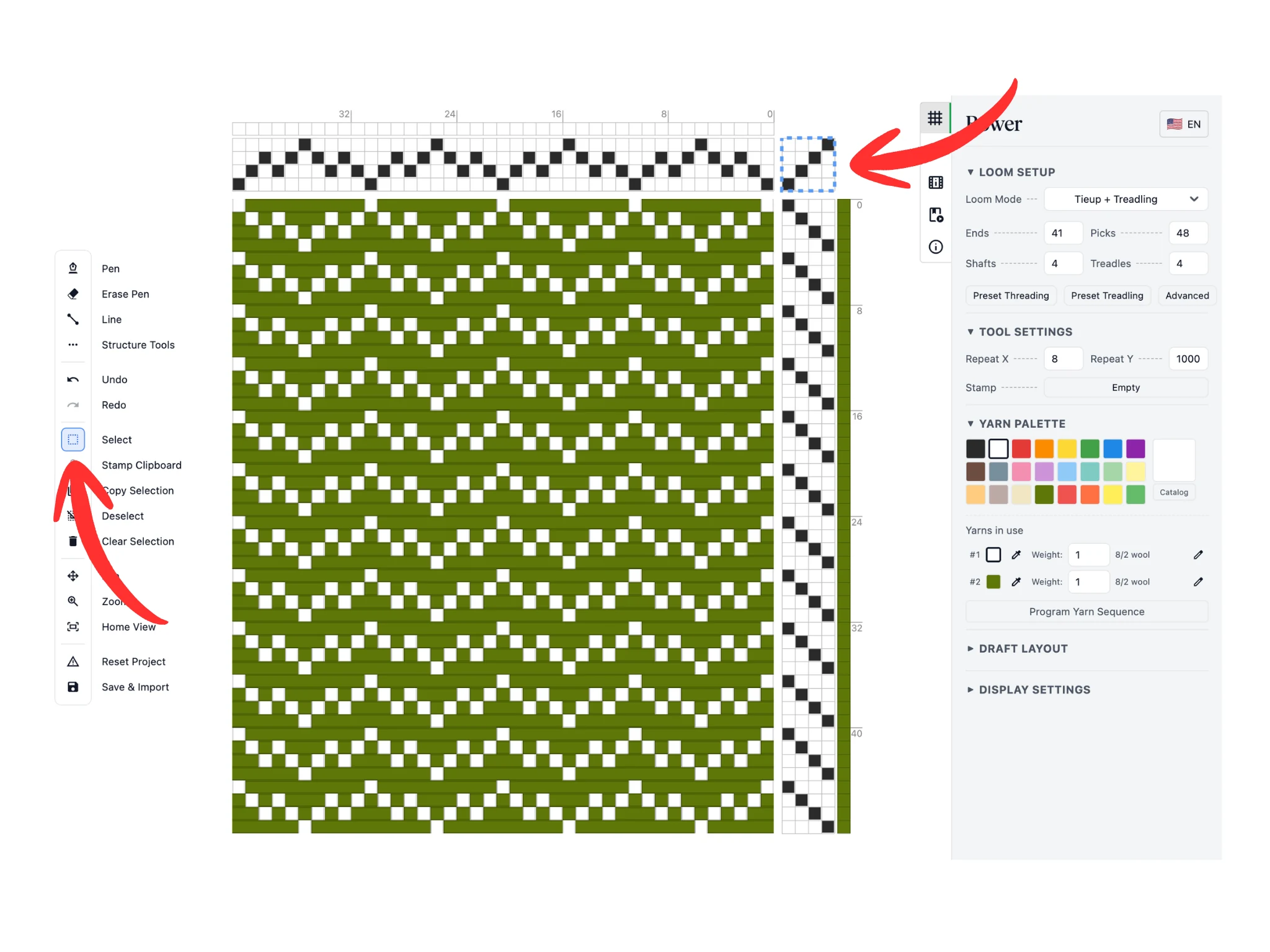
Para este tutorial, copiamos y sellamos la secuencia de sarga a punta en zigzag para rellenar los nuevos hilos insertados.
A continuación, usa la herramienta Selección y selecciona todas las celdas del amarre. Recuerda que las herramientas de selección funcionan en las secciones de remetido, amarre y pedaleo del diseño.
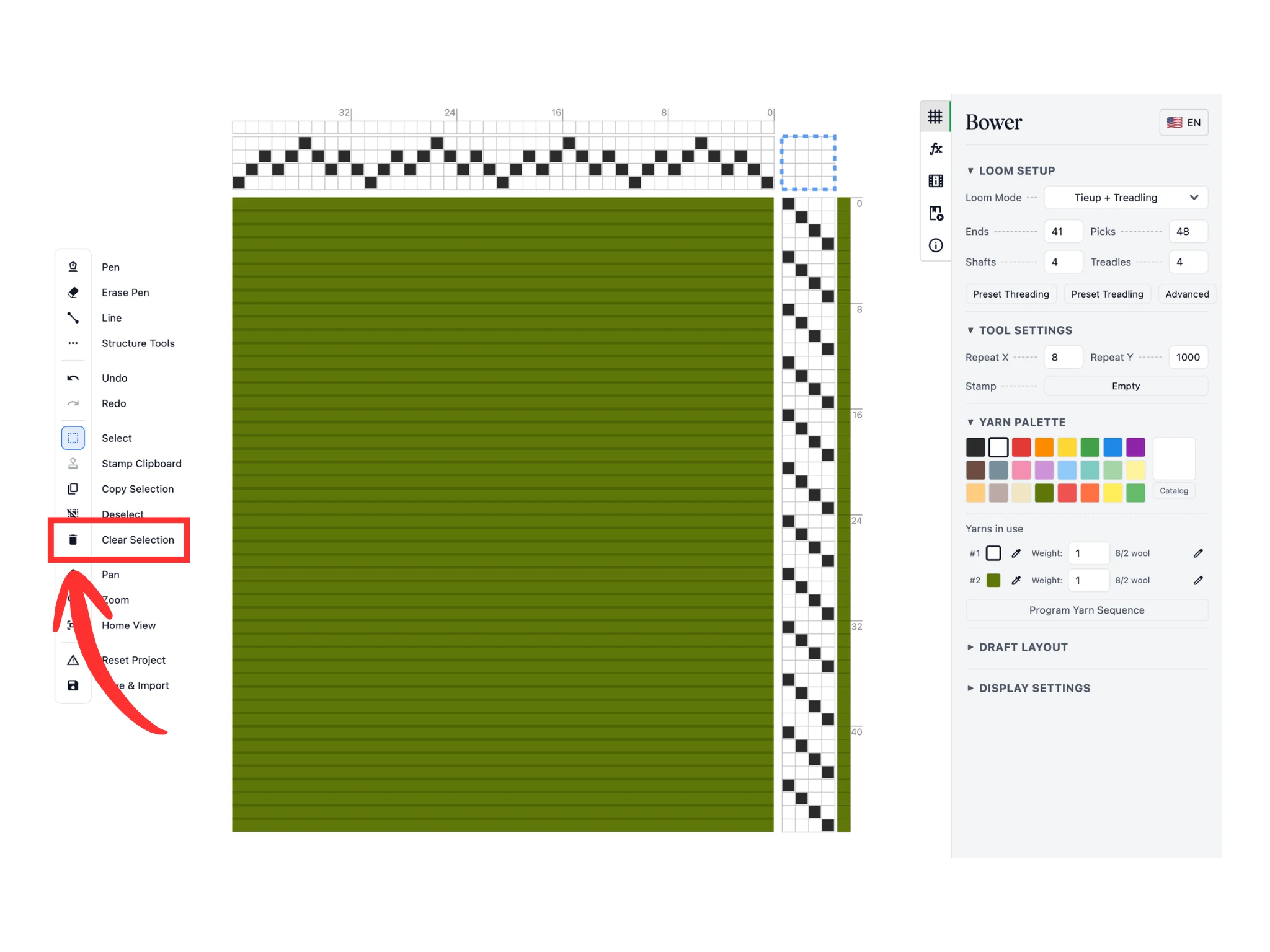
Usa el botón de la herramienta Borrar selección para eliminar todos los datos dentro de una selección. Puedes ver que todo lo que estaba dentro del recuadro azul punteado se ha borrado.
Con un amarre vacío, el patrón del tejido se actualiza en consecuencia y nos muestra todos los hilos de urdimbre.
La herramienta Borrar selección es útil cuando quieres eliminar partes de tu diseño, a menudo para rehacerlas.
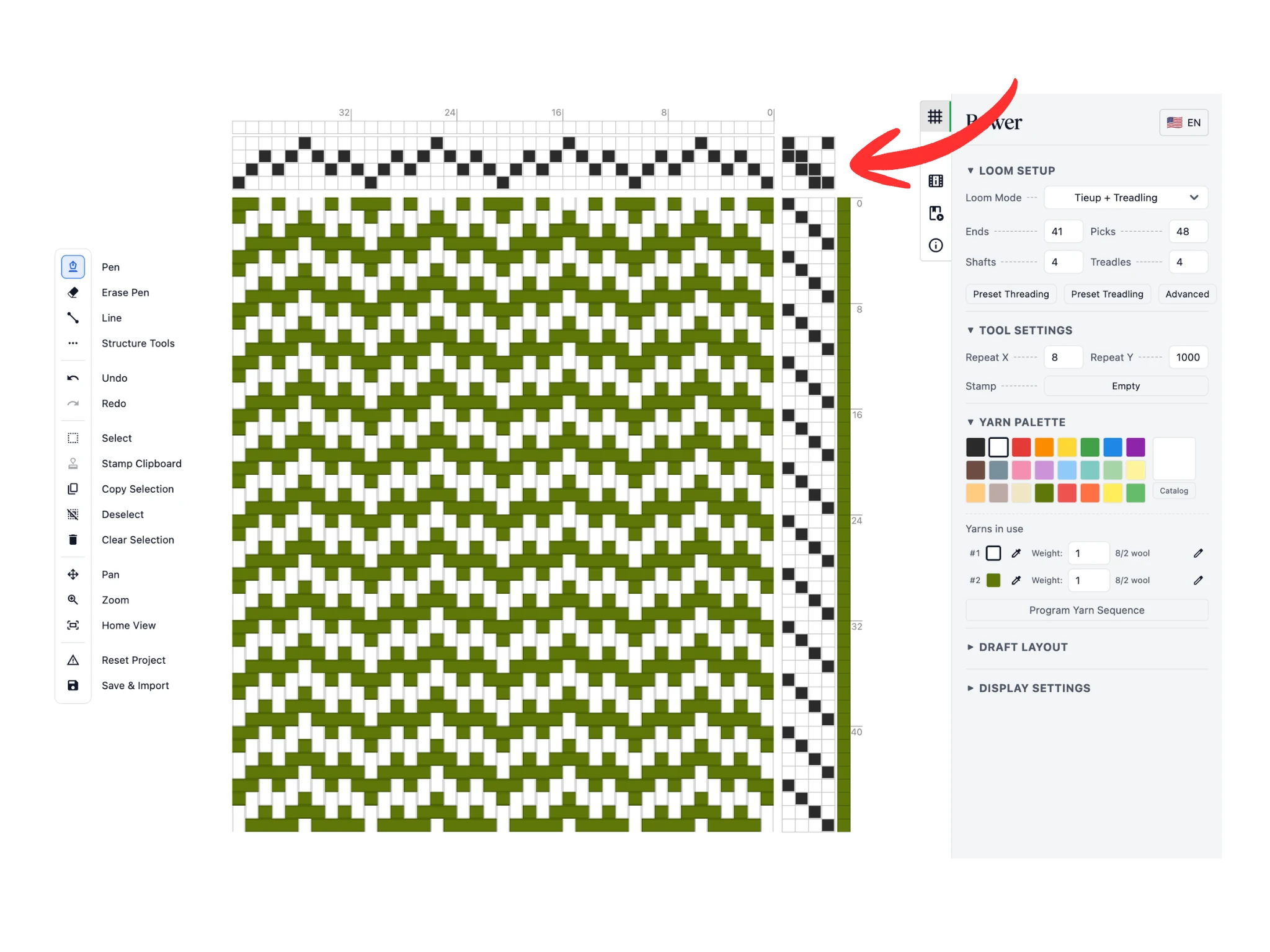
Para el tutorial, usamos la herramienta Lápiz para dibujar un amarre de sarga 2/2 descendente.
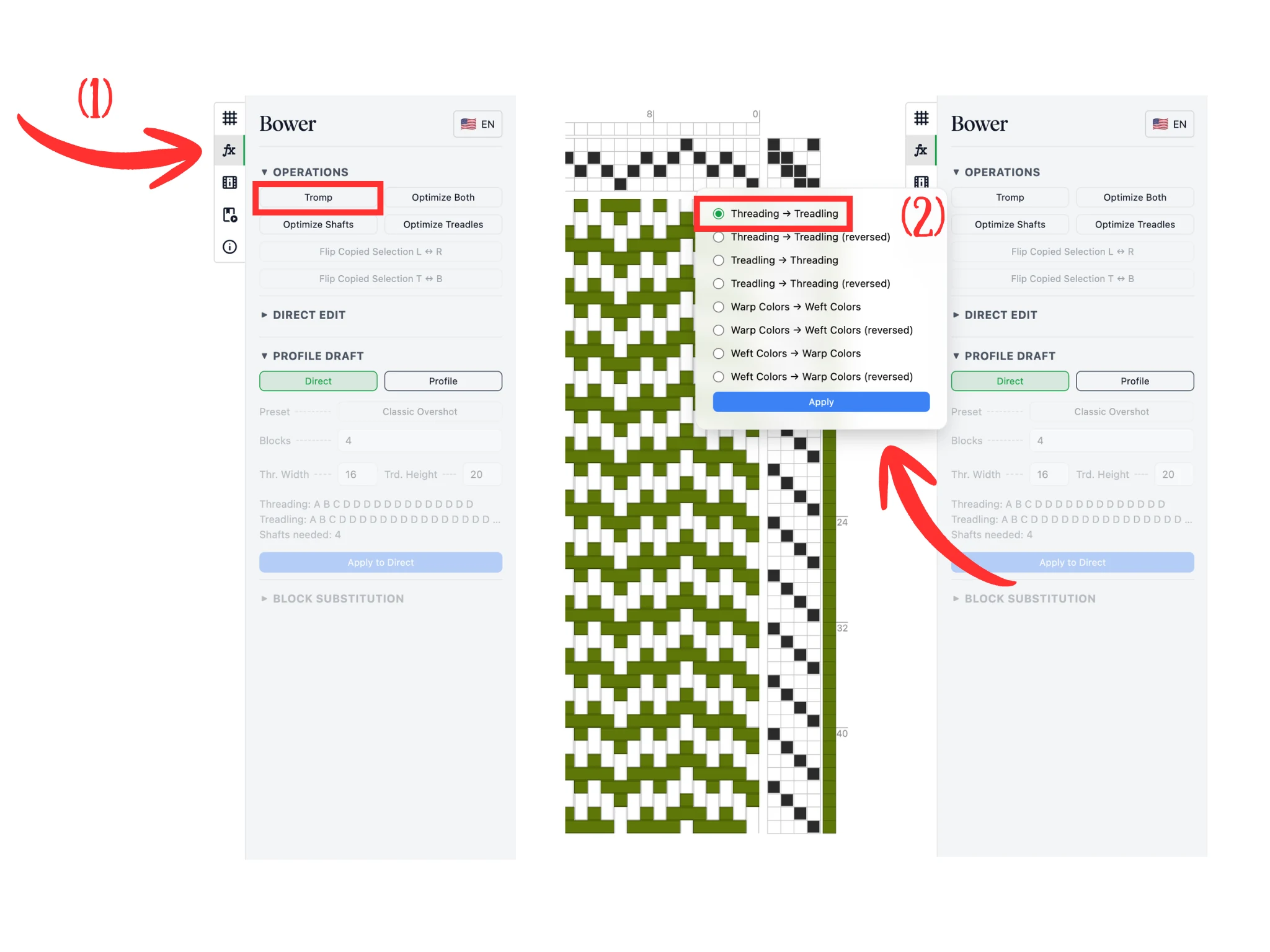
A continuación, usaremos la función Tromp as Writ en Bower. Esto copia la secuencia de remetido al pedaleo, o viceversa.
Ve a la pestaña Operaciones (1), que tiene un icono «fx». Haz clic en el botón Tromp en la sección Operaciones.
Esto abre una ventana emergente con muchas opciones para Tromp as Writ. Selecciona la opción Remetido -> Pedaleo (2) y haz clic en Aplicar para confirmar.
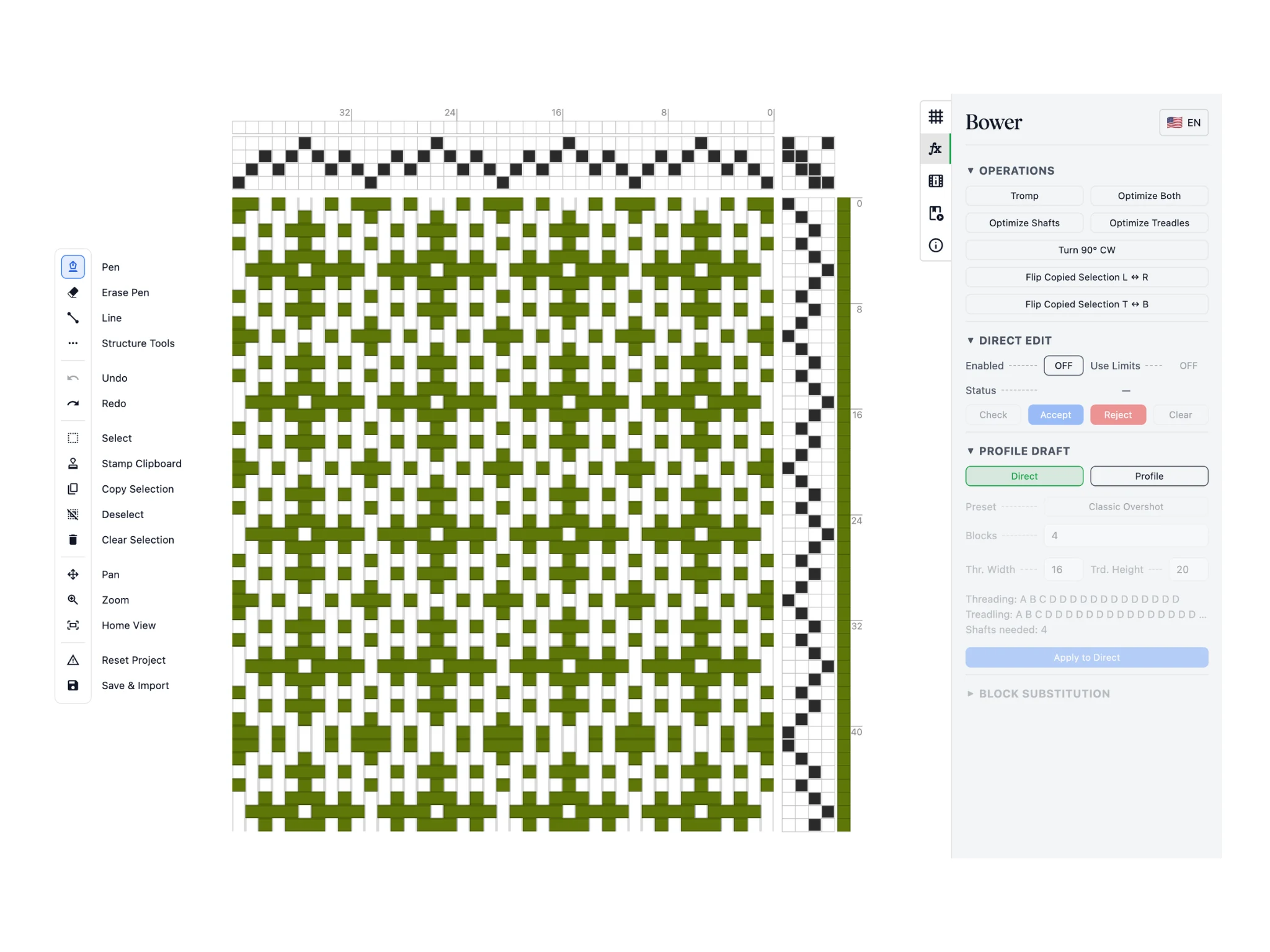
Puedes ver que la secuencia de remetido se ha copiado a la sección de pedaleo y rotado en consecuencia.
Ten en cuenta que si no hay suficiente secuencia para copiar, empezará de nuevo. Así, un remetido 1-2-3-4-3-2-1 se copiará como una secuencia 1-2-3-4-3-2-1-1-2-3-4-3-2-1-1-.... Usa la herramienta Eliminar pasada para quitar las pasadas duplicadas si lo deseas, o configura el remetido como 1-2-3-4-3-2, que se repite limpiamente.
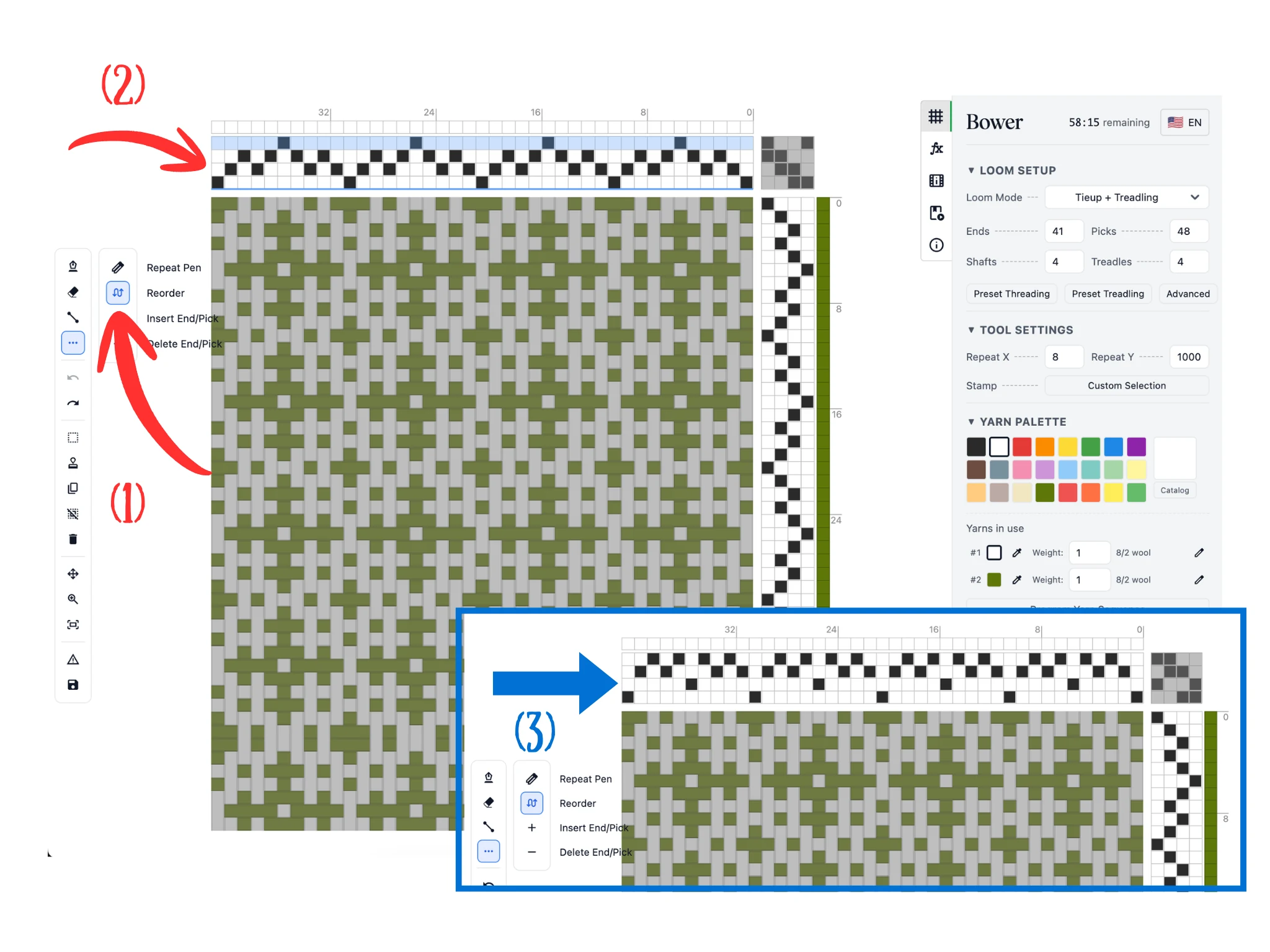
La última herramienta que te presentaremos en este tutorial es la herramienta Reordenar, que te ayuda a reordenar tus lizos o pedales. Haz clic en ella (1) en la subbarra de Herramientas de estructura.
Pasa el mouse sobre la sección de remetido del editor (2), y resaltará una fila completa de lizo. Haz clic izquierdo y arrastra a un nuevo hueco, que se resalta como una línea azul más oscura. Cuando sueltes el botón del mouse, el software moverá la fila de lizo que estás arrastrando hacia ese hueco, como se ve en (3).
Esto también funciona en la sección de pedaleo, en la que resalta columnas completas de pedal. Esta herramienta te ayuda a organizar tus lizos y pedales para facilitar el remetido/pedaleo con el telar físico.
¡Felicidades por terminar este tutorial de Bower!