We hope you've enjoyed using Bower for free one hour every day. If you bought a license key to Bower directly from our website and used the Stripe payment portal, it is important to know that activating your license on web and Windows PC is very different from activating your license on Mac, iPad, or Android. Please read this article to understand how you can use your license across device platforms. You can use your license on up to two different devices at the same time.
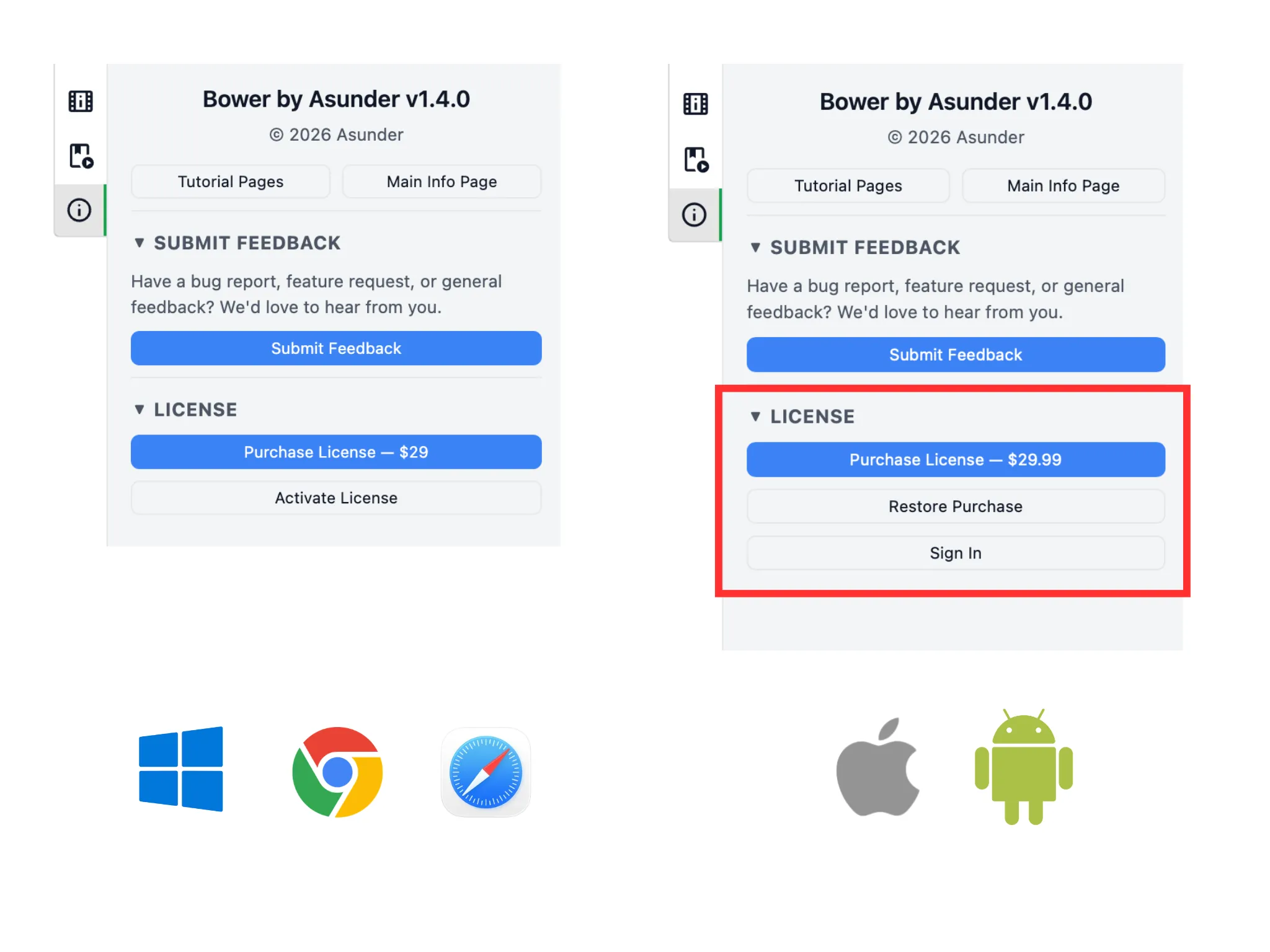
On the left, you can see that activating with a license key on Windows PC and web editions of Bower is simple. One simply uses the Activate License button and enters the key.
On the right, you can see that there is not a direct option to do so. This is due to the rules of Apple's App Store and Android's Google Play Store. Instead, you have the option to buy a license directly inside the app or, importantly, a Sign In button for existing license holders.
You will need an Asunder account (if not, it takes 3 minutes to create one), to which you (1) add the license key to your account and then (2) use Sign In with the account in Bower. If you sign in with a licensed account, this unlocks the time limit in Bower.
We will walk through how to do so. If you have trouble at any point, please email [email protected].
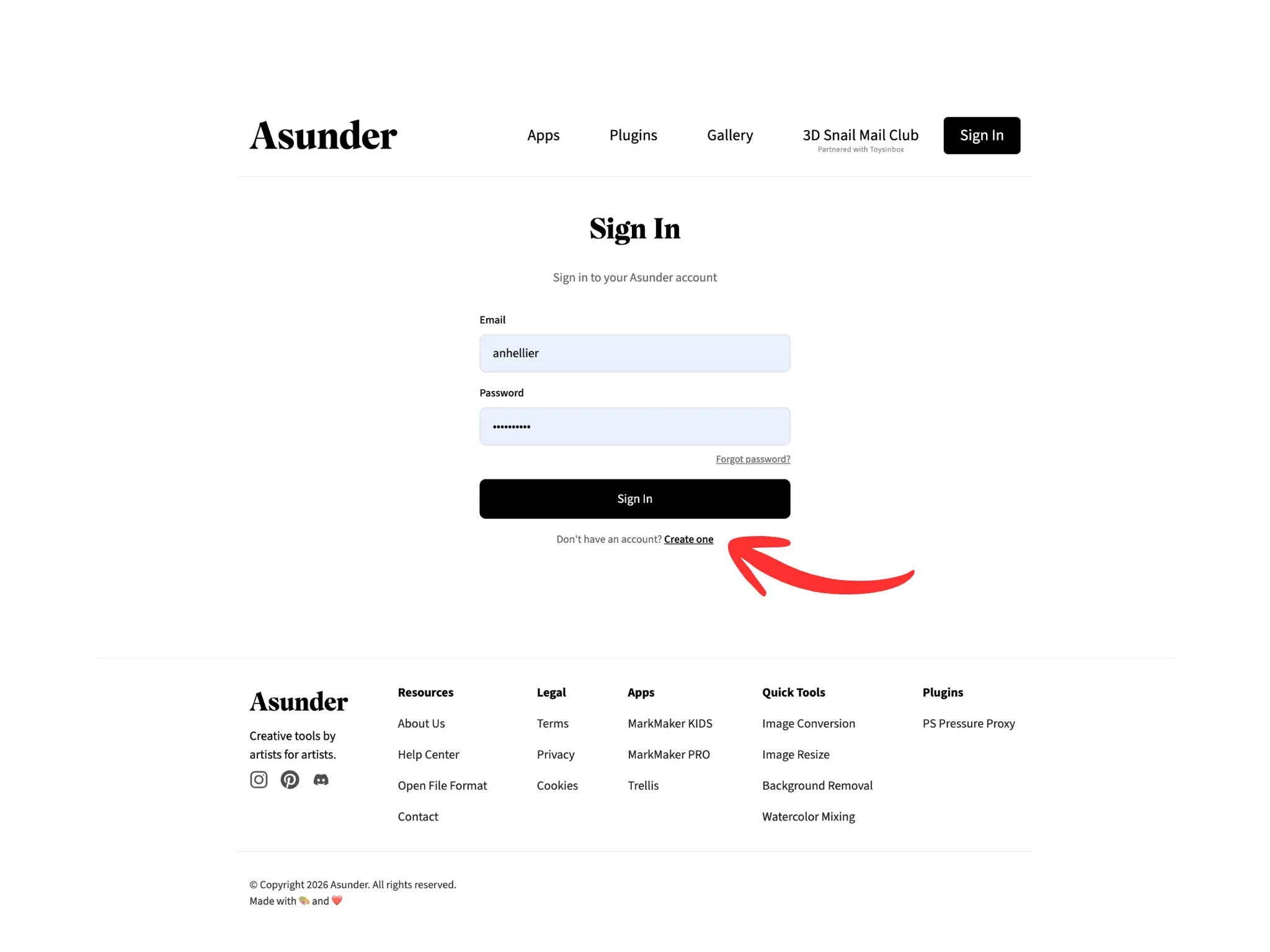
To create an Asunder account, please visit asunder.co/login.
Then click on the "Create One" button below the "Sign In" button.
If you already have an account and a license key, you can skip steps 3-4 and directly log in and link your key.
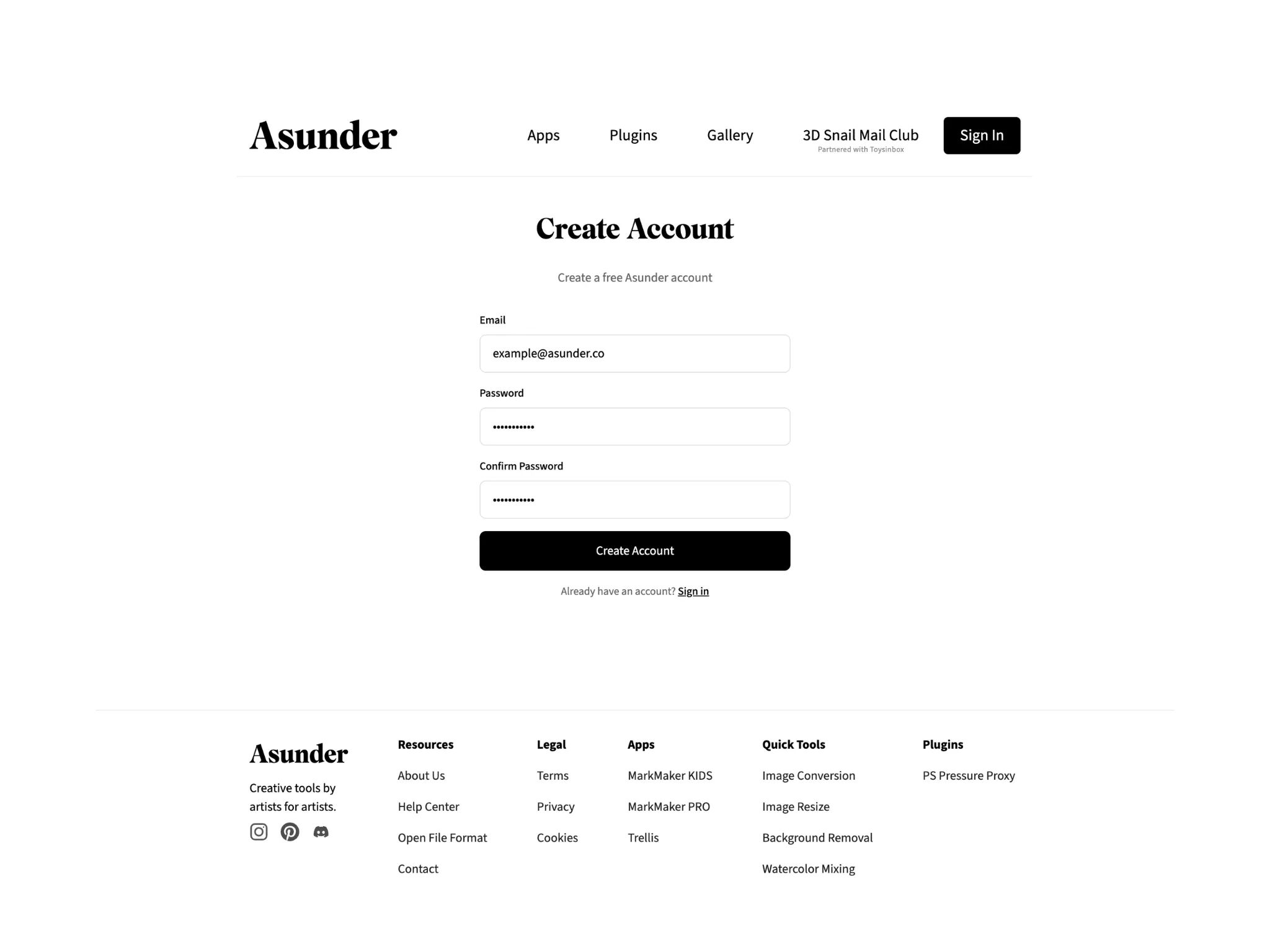
Enter your email and choose a password for your Asunder account.
You will continue to use this email and password to log into your Asunder account in the future, so choose wisely!
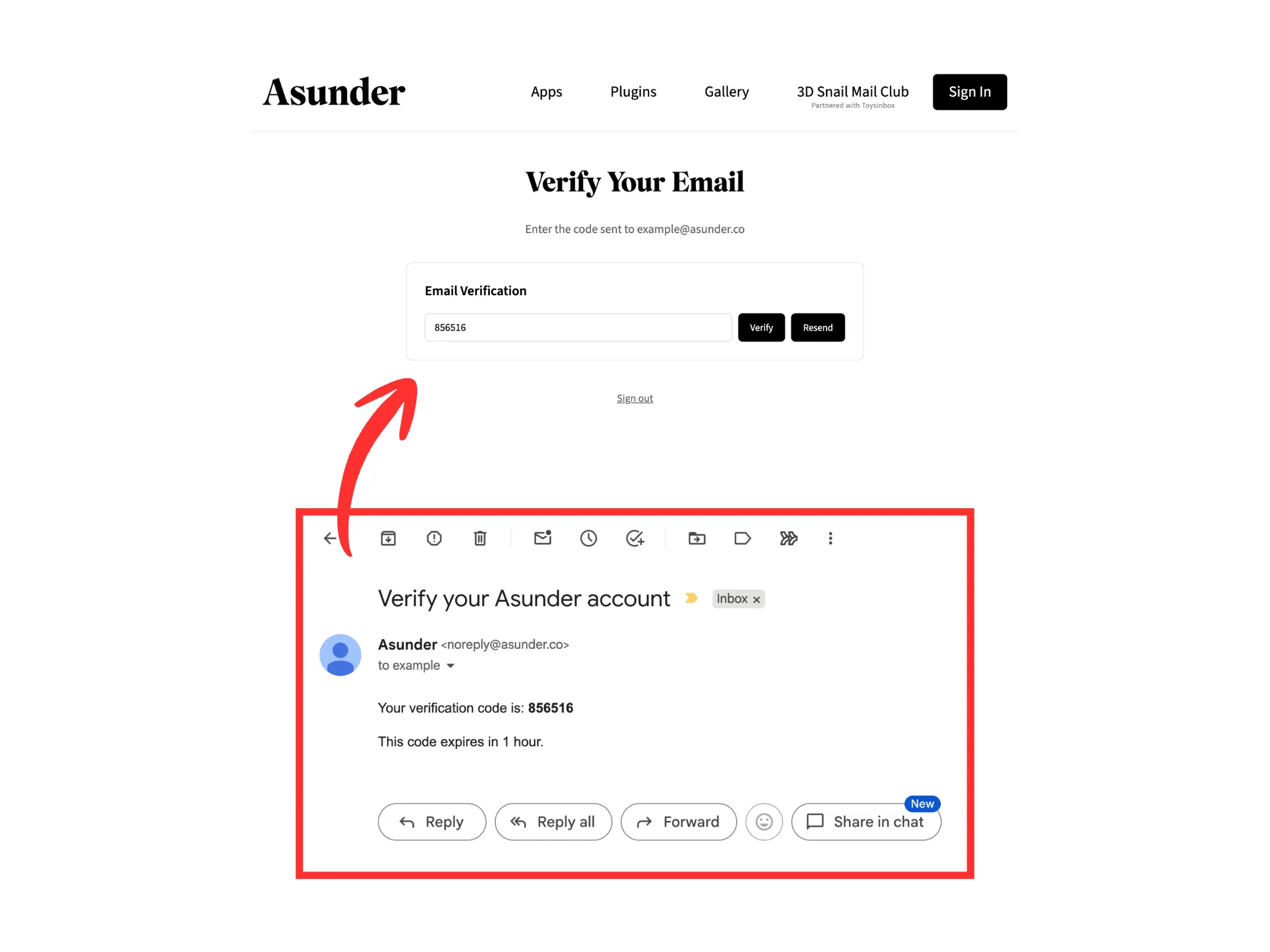
You will need to verify your email with a one-time code that will be sent within 5 minutes.
Check your email for an email from [email protected] which contains the verification code. Copy it exactly into the "Verify Your Email" page's input and click the Verify button.
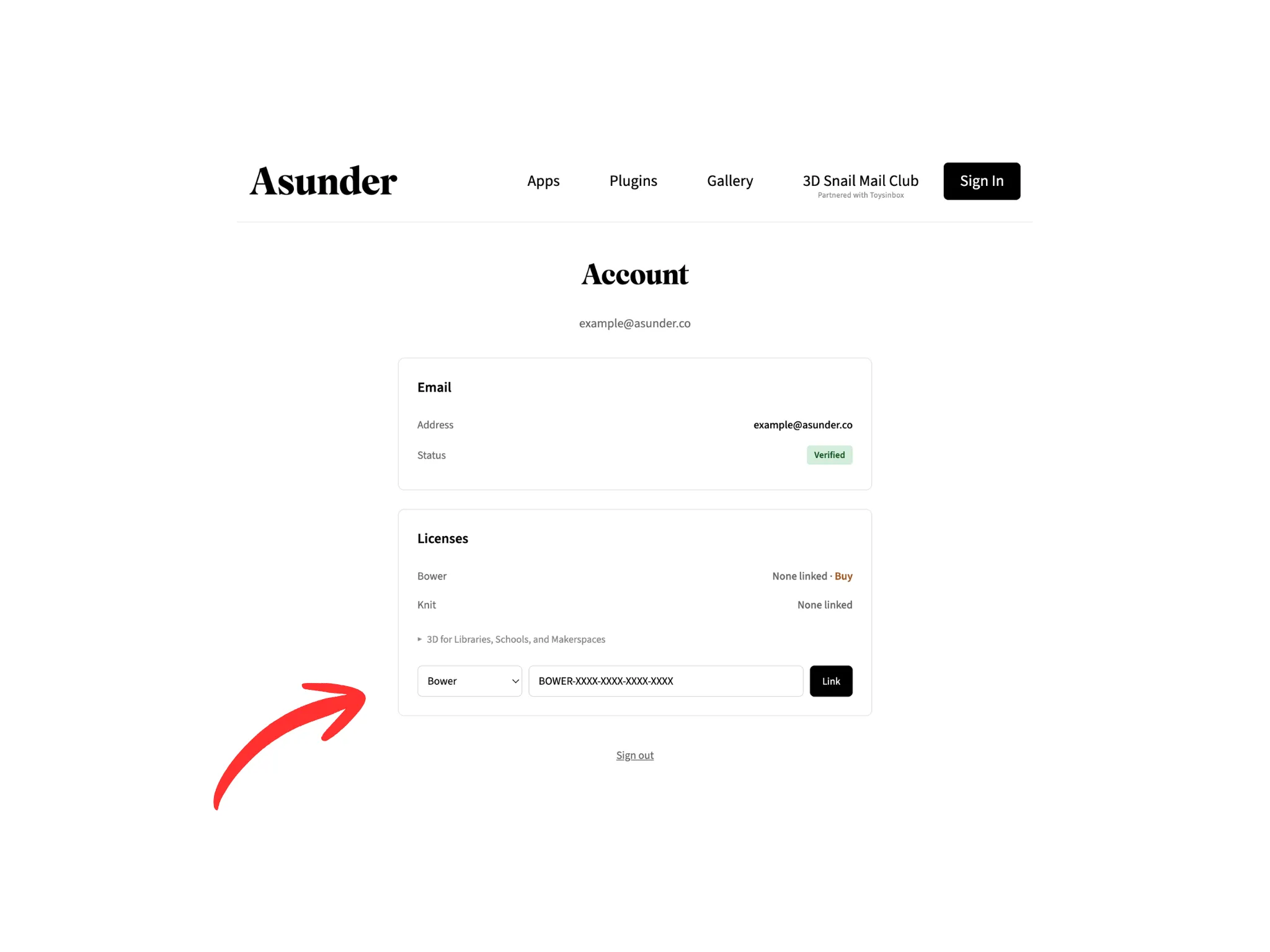
This is the page you should now see once you are logged into your Asunder account. Go to the Licenses section, input your license key making sure that the Bower option is selected. Then click on the Link button.
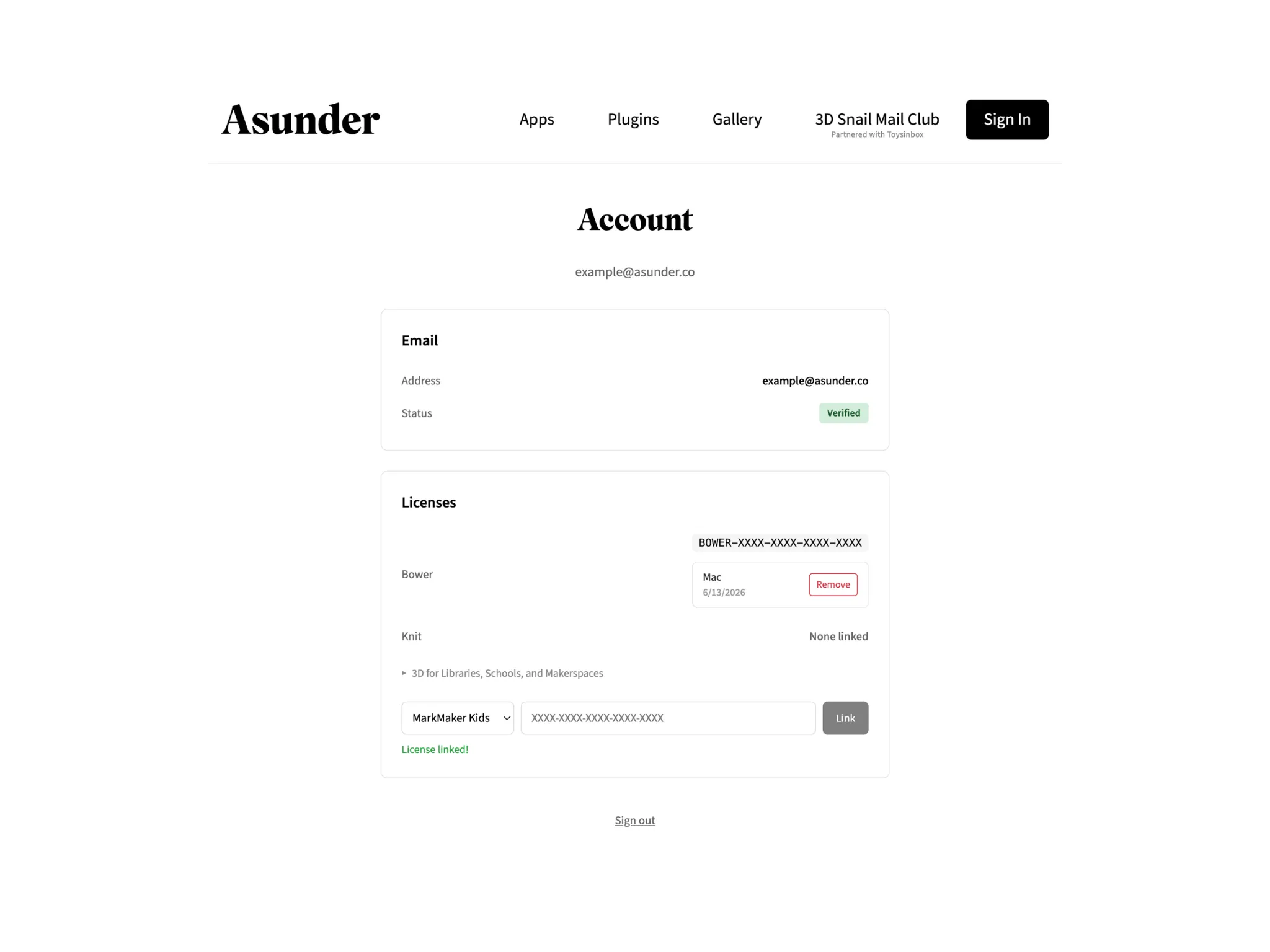
Once linked, your account page should look like this.
Note: for users who purchased a Bower license from the Apple App Store or Google Play Store, you can view your Bower license key here once you log into your account in the Bower app first.
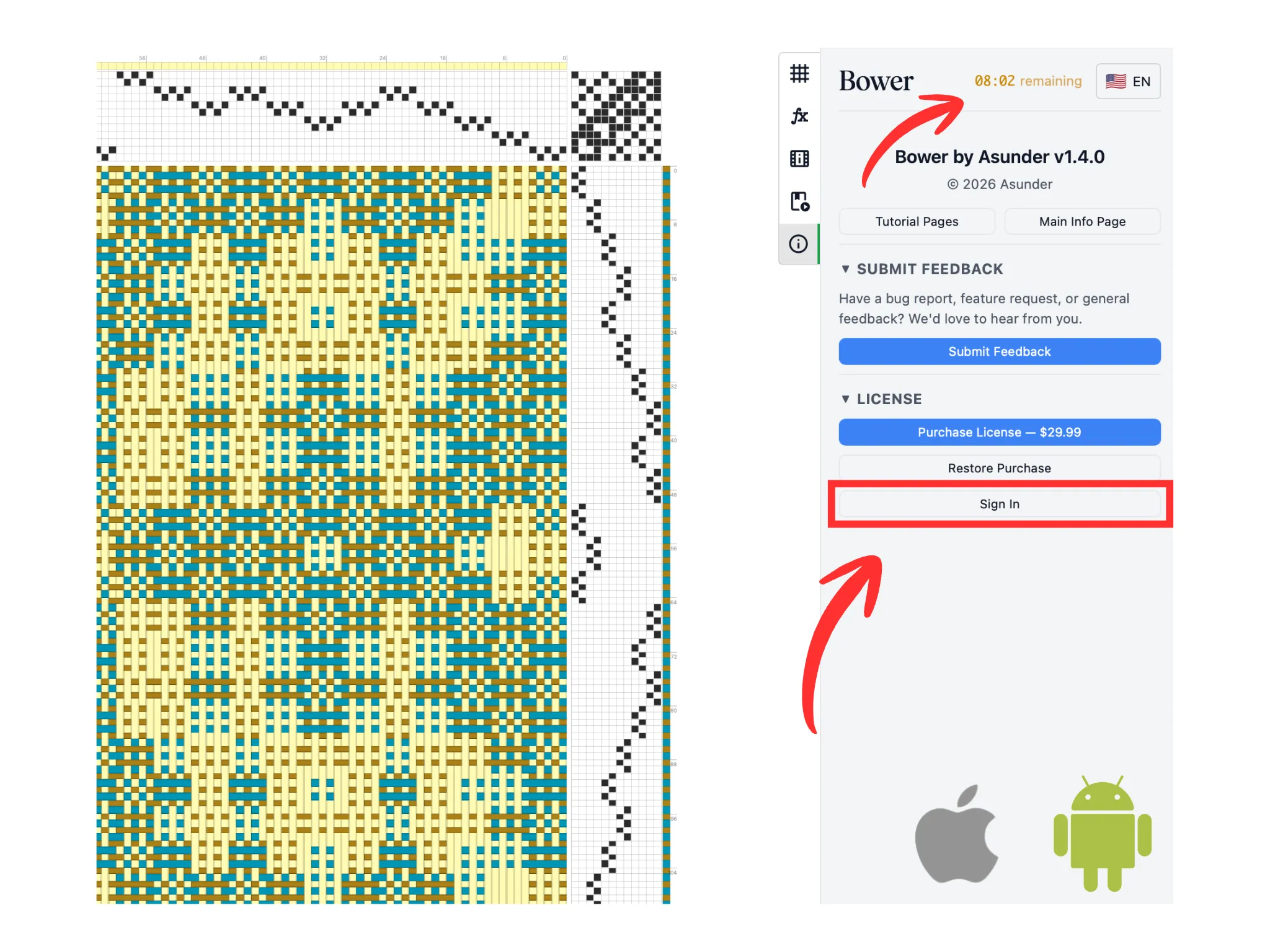
Going back to Bower on your Mac, iPad, or Android device, click on the Sign In button.
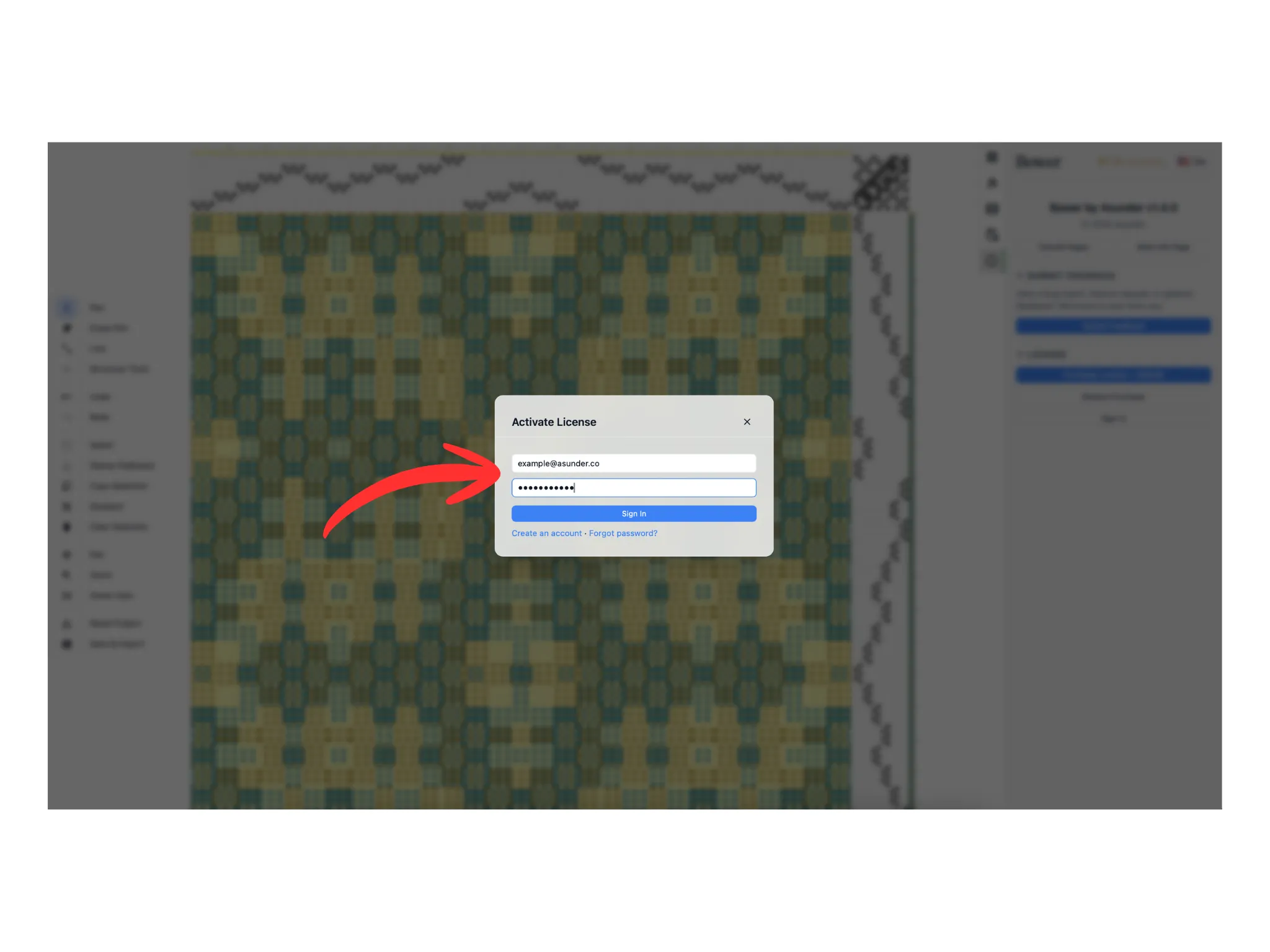
Enter your Asunder account credentials into the window that pops up.
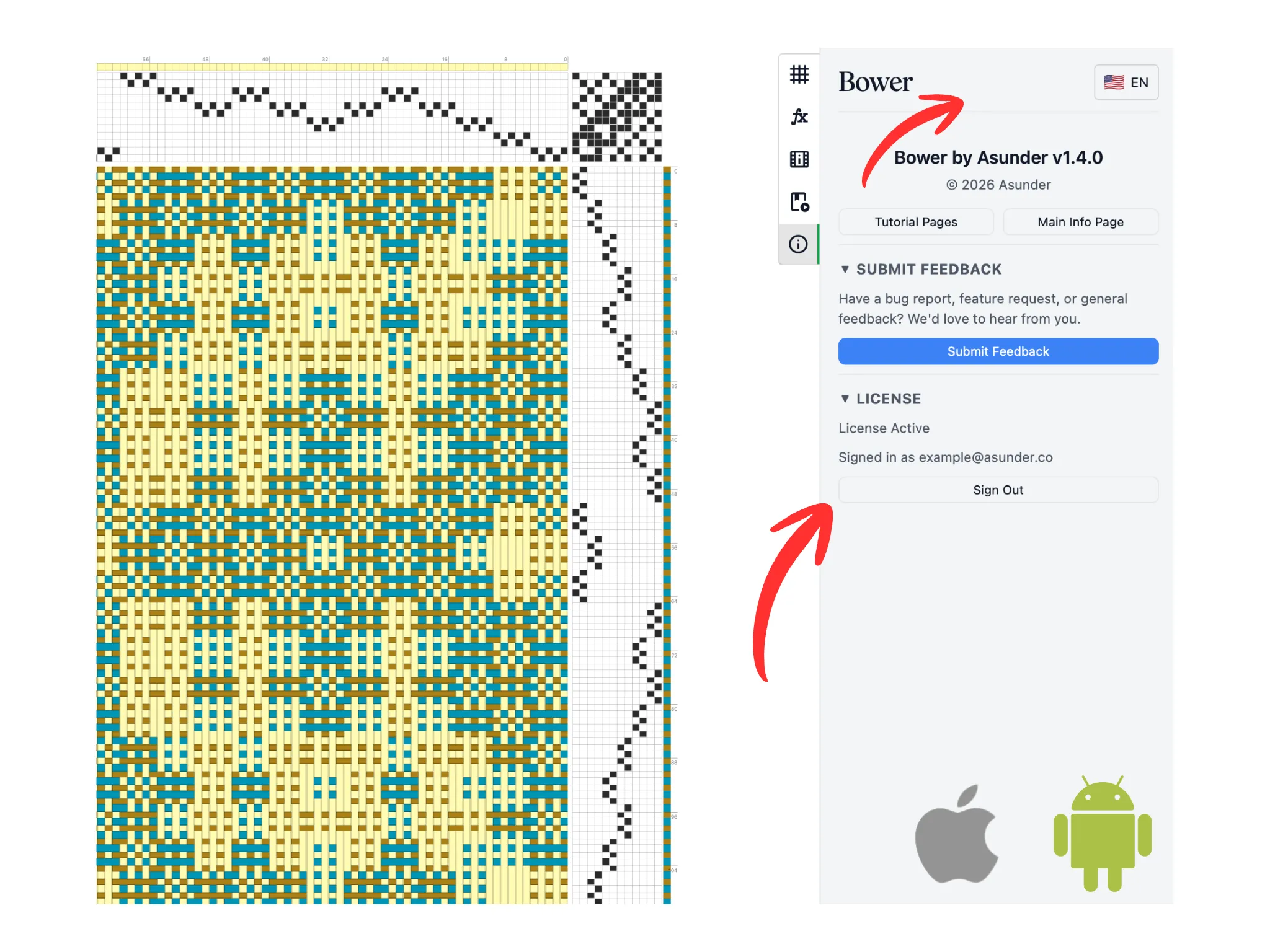
As long as your account has a valid Bower license linked, the license section will say "License Active" and that you are "signed in". The daily timer is now lifted. Unlimited weaving awaits!