MonteGrid | Tutorials | Convert from Crystal Ball or @RISK
Convert from Crystal Ball or @RISK
Import Crystal Ball definitions from a full report, or convert @RISK functions in place. Work on a copy of the model. The figures show sample models.
-
1Crystal Ball
Crystal Ball stores its definitions outside the cell formulas. MonteGrid reads them from a Crystal Ball full report and writes them into the cells.
To import Crystal Ball definitions:
- In Crystal Ball, run the simulation and create a full report (Create Report › Full), saved as .xlsx.
- Copy the model and the report to the Mac.
- Open the model in Excel. On the MonteGrid tab, click Import Definitions.
- Click Choose report… and select the report.
- Click Import.
- Save the workbook.
The dialog lists the cells that MonteGrid could not write. These keep their values. It also shows the Crystal Ball mean and SD of the forecast.
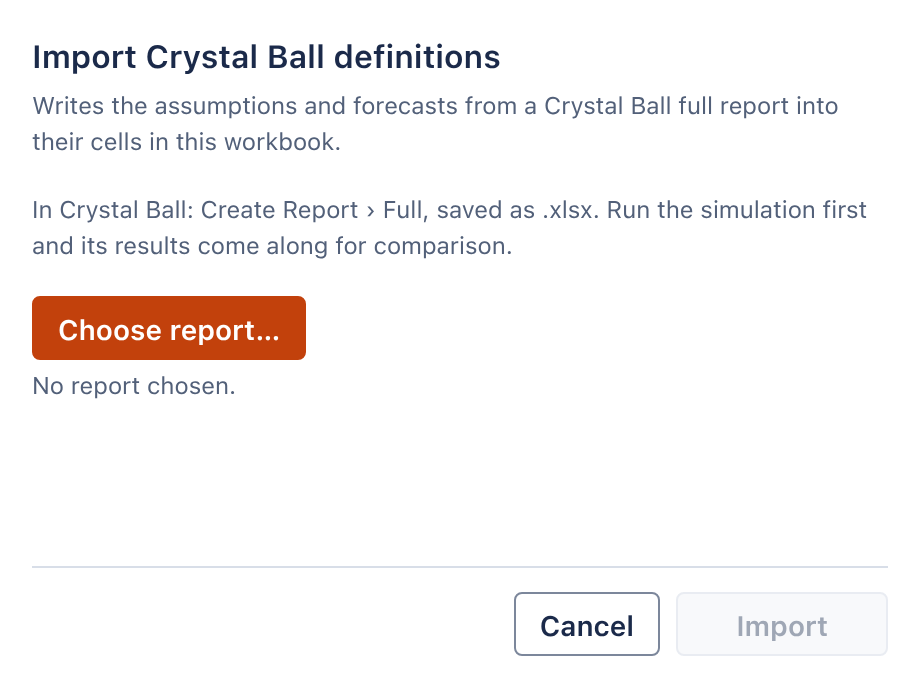
Import Crystal Ball definitions. Open full size 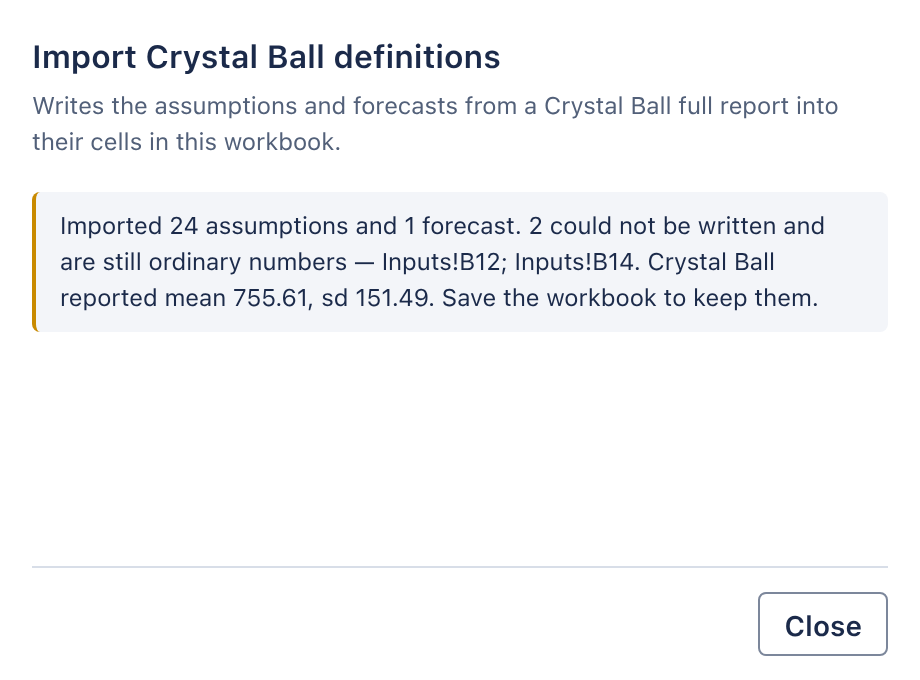
An import with two cells not written. Open full size -
2@RISK
@RISK definitions are cell functions. MonteGrid rewrites them as MC_ functions in place. It converts 29 @RISK distribution functions, RiskName, RiskStatic, RiskTruncate, RiskOutput, RiskMakeInput and RiskCorrmat. It does not convert RiskCopula.
To convert an @RISK model:
- Open the model in Excel. On the MonteGrid tab, click Open MonteGrid.
- On the Model page, under Built with @RISK, click Convert….
- Review the plan, then click Convert.
- Save the workbook.
The plan lists the cells to convert, each cell left as @RISK's with the reason, @RISK result cells such as RiskMean, which stay as they are, and what MonteGrid does not keep.
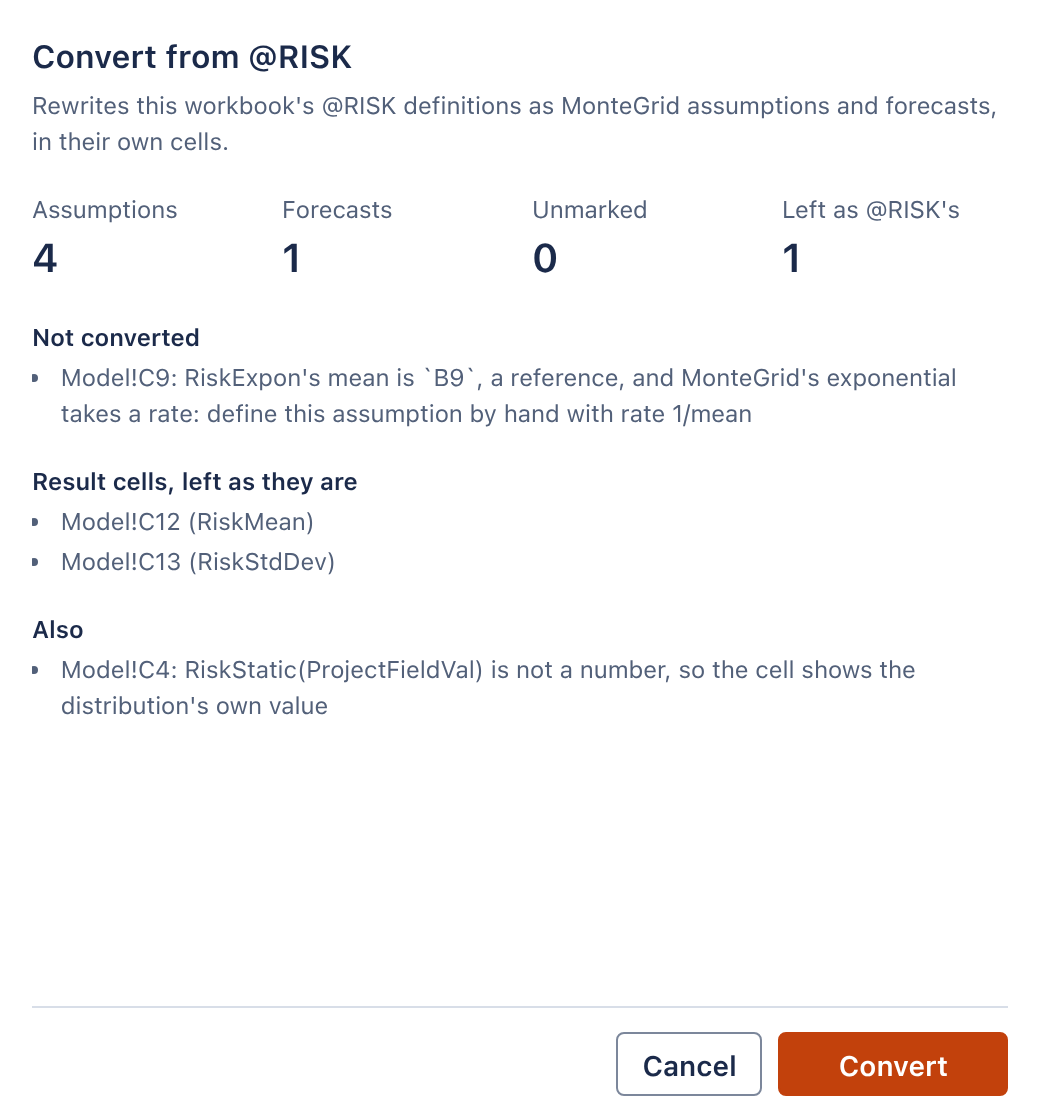
The conversion plan. Open full size 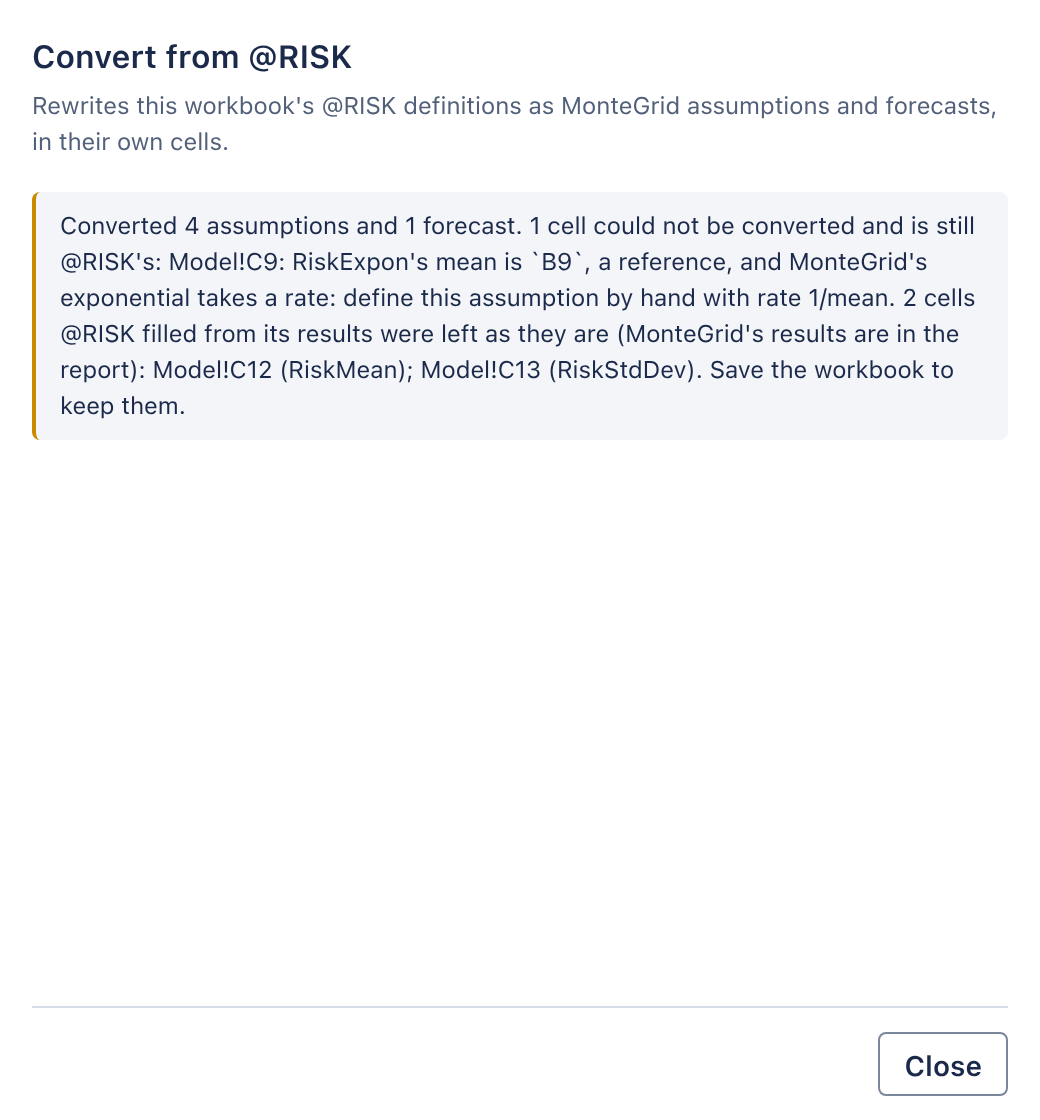
A conversion with one cell not converted. Open full size -
3Check the conversion
Define by hand each cell that was not converted. Run the model with the number of trials used in Crystal Ball or @RISK, and compare the forecast statistics. They differ within sampling error, because the tools use different random numbers.