Tutorial 3 of 3
Yarn Color and Yarn Sequence Management

Welcome to Bower! In this tutorial, you will learn to configure your yarn colors faster and to set up more complex color sequences.

Step 1
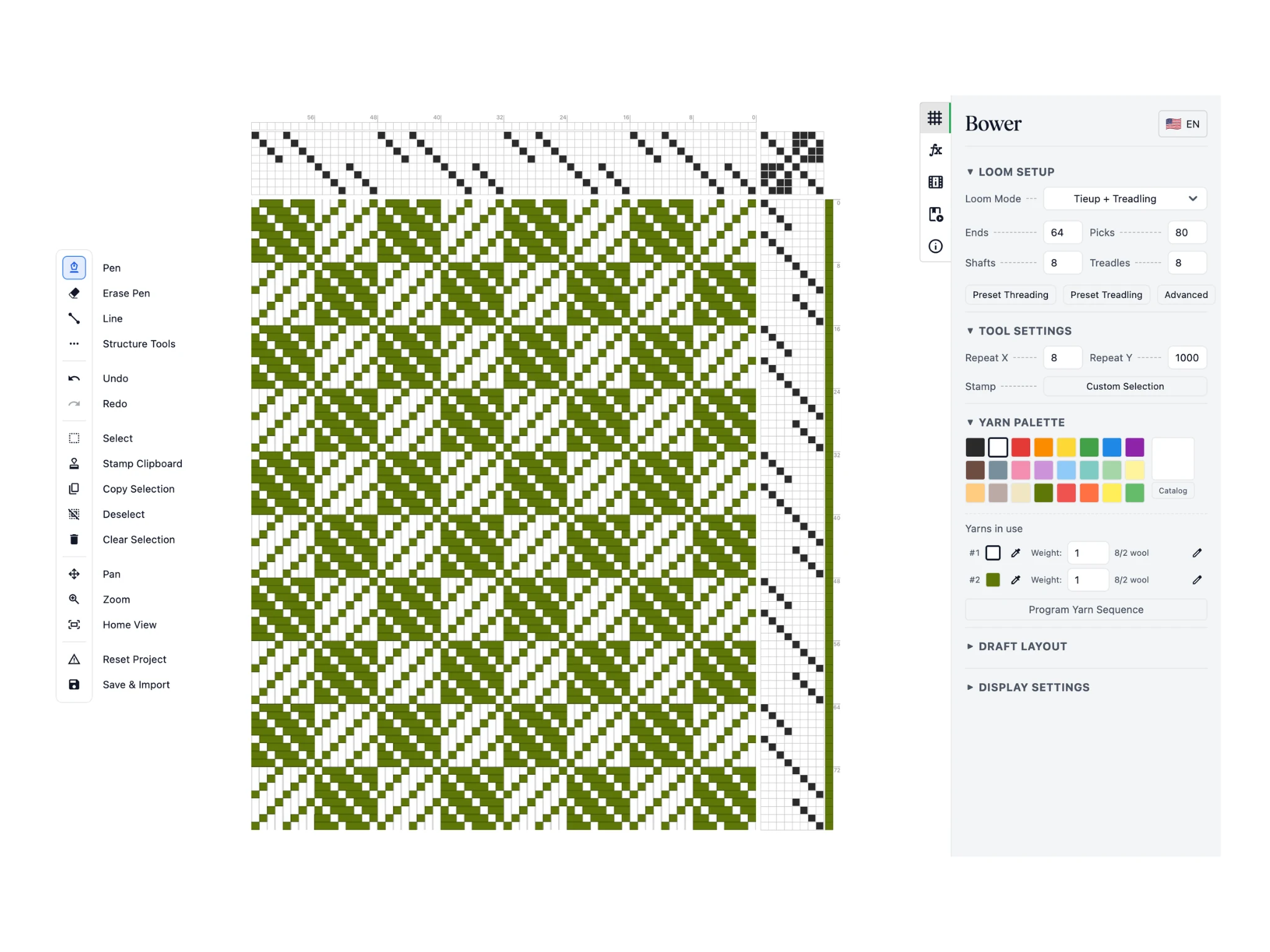
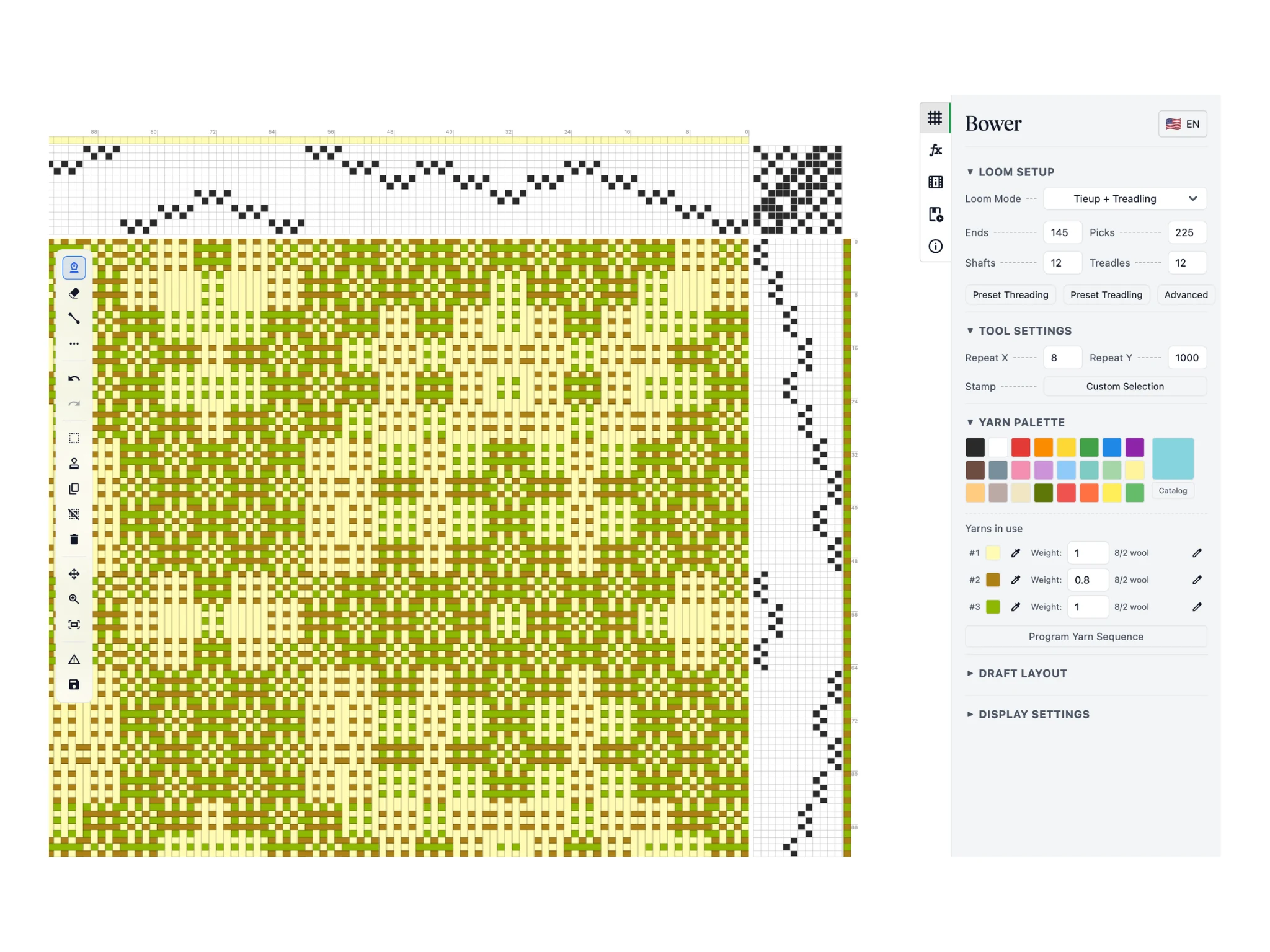
An eight-shaft turned twill draft loaded in Bower

We will start this tutorial with an eight-shaft turned twill draft. You can get the .BOWER file from here and load it in the Save & Import button.

Step 2
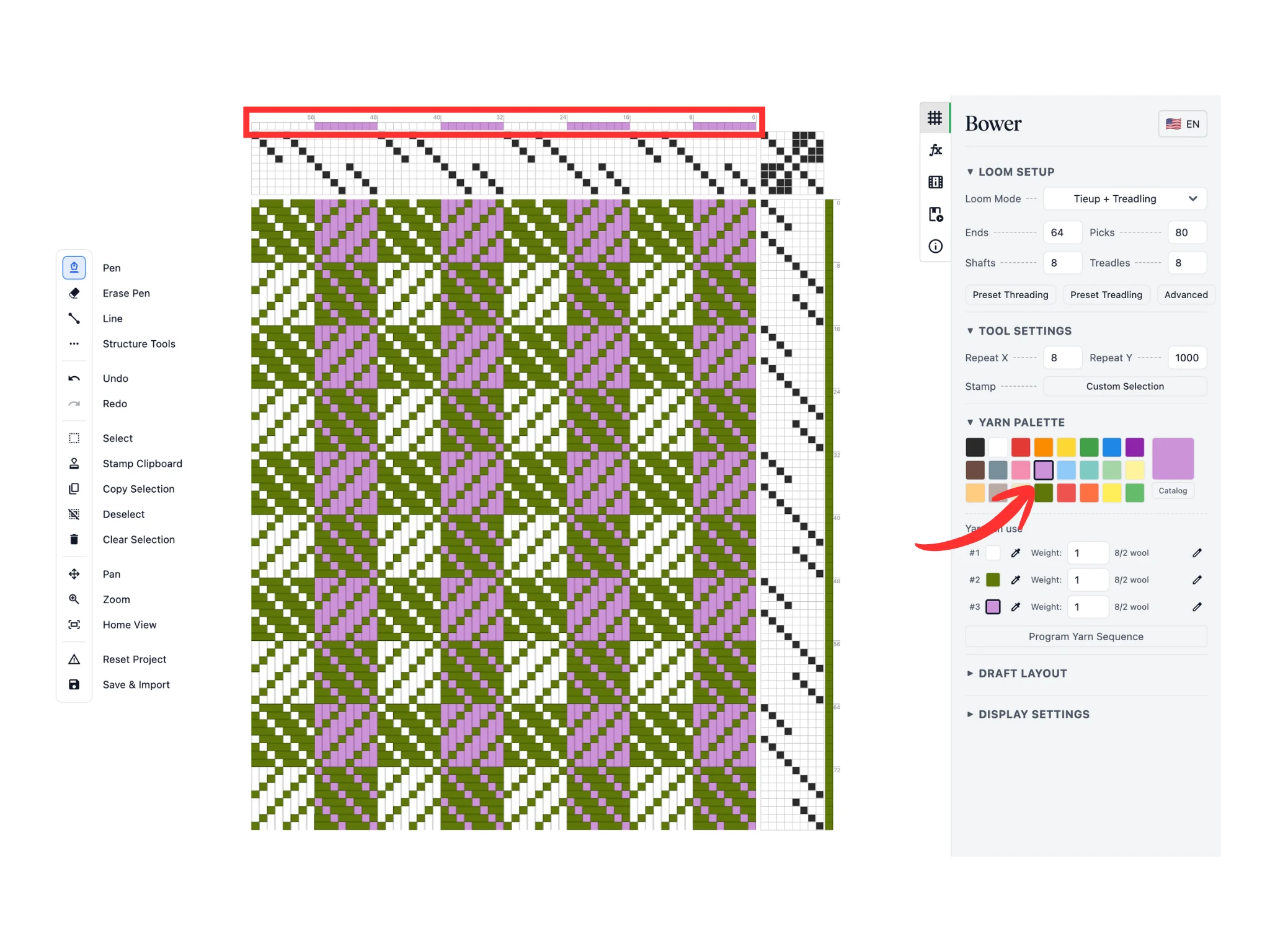
Setting warp colors with the pen tool using a light purple preset

Recall that the software has an active color and we can change it by clicking on the color presets in the Yarn Palette.

In this tutorial, we've chosen a light purple color. Use the Pen tool to change the warp color assignments in the row of cells above the threading section in the editor.

You can see the drawdown recolor accordingly.

Step 3
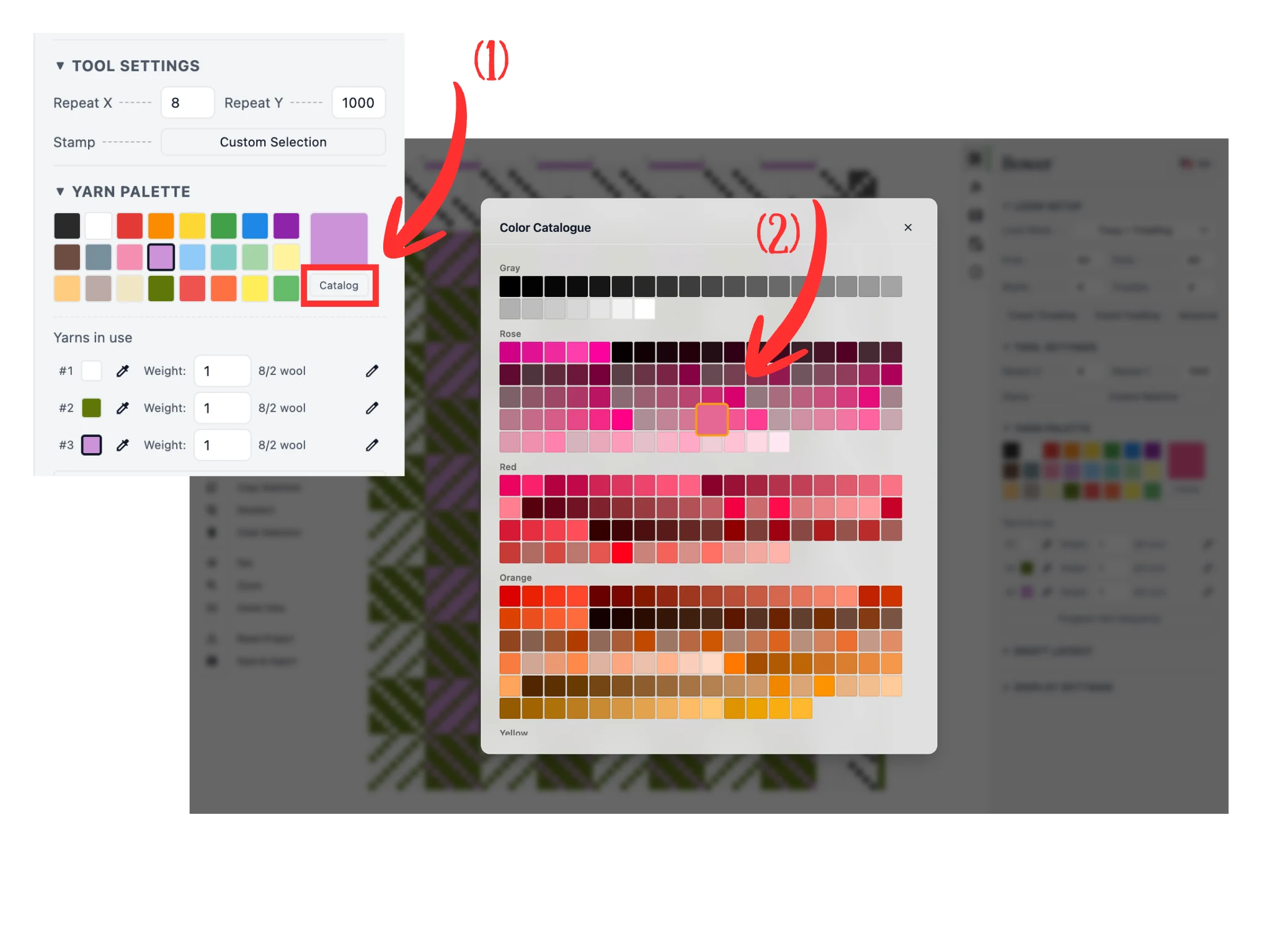
Choosing a color from the 1000+ catalog opened from the Yarn Palette

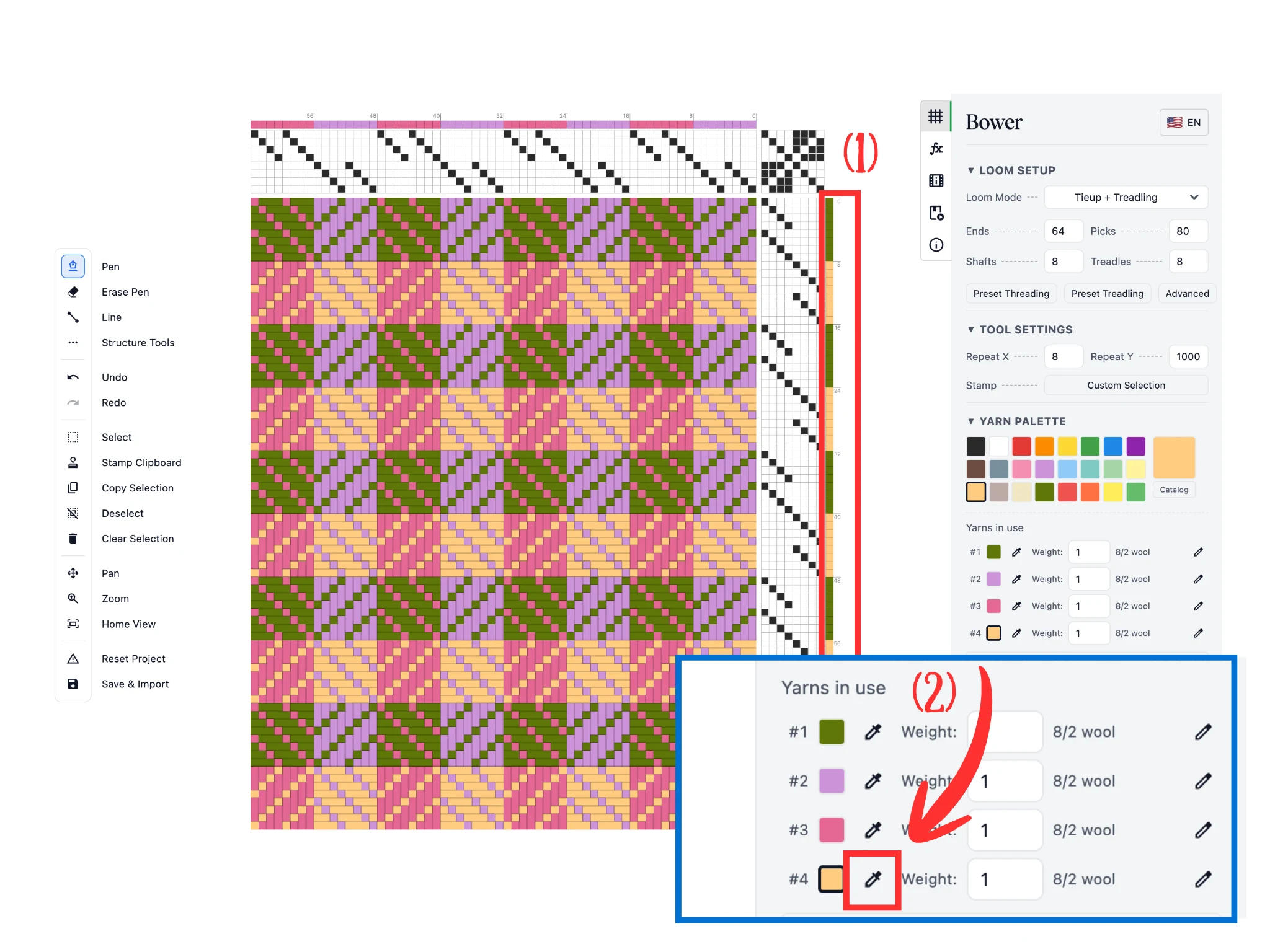
Recall you can click on the Catalog button (1) under the Yarn Palette section to see our entire catalog of 1000+ colors.

Scroll through to find a color you like and click on it (2) to set it as the active color.

Step 4
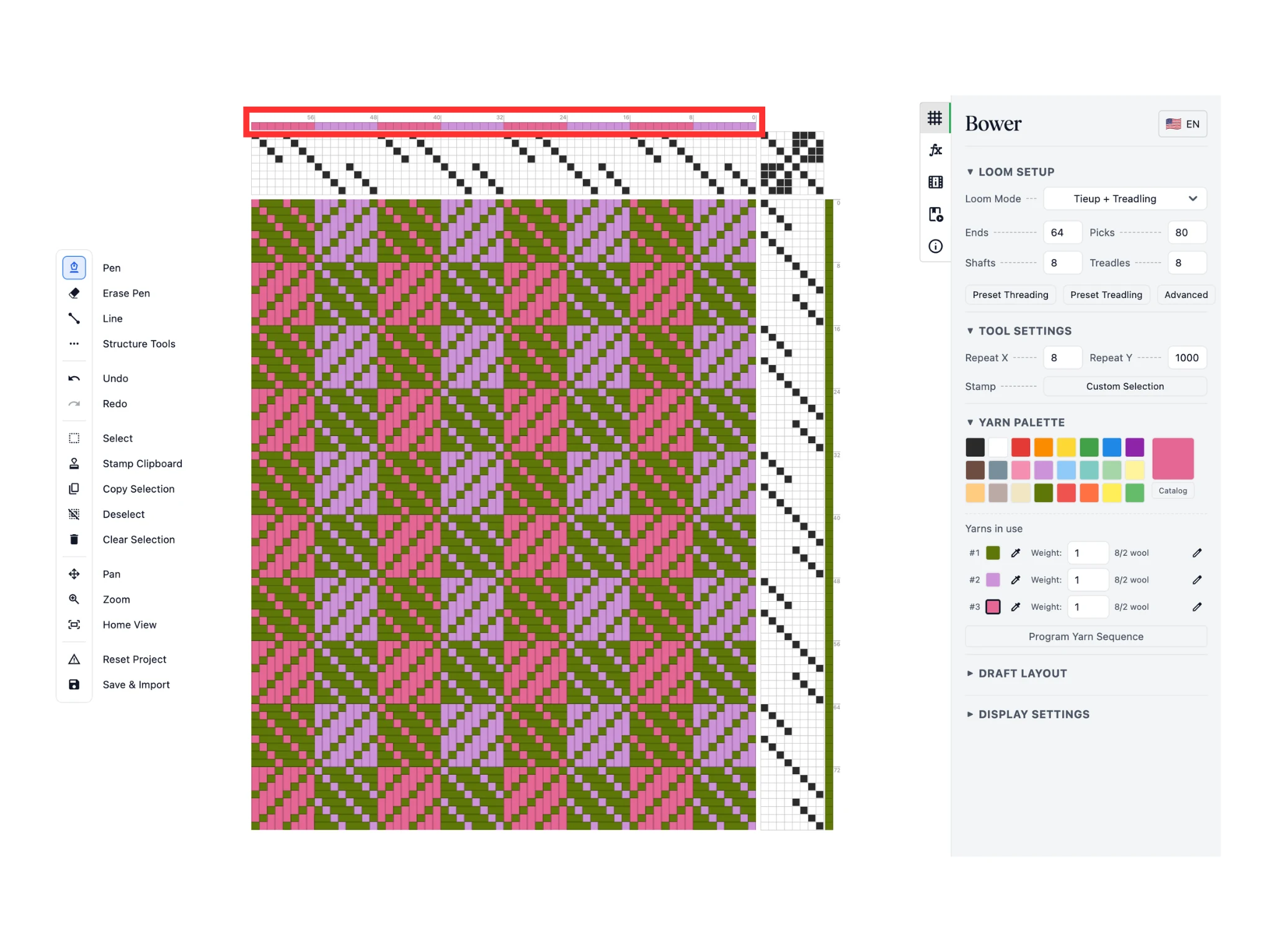
Applying the new warp color with the pen tool

Again, use the Pen tool to change the warp color assignments in the row of cells above the threading section in the editor.

Step 5
Setting weft colors and opening the eyedropper from Yarns in use

We've chosen another color and used the Pen tool to change the weft color assignments (1) in the column of cells to the right of the treadling section in the editor.

Recall that the "Yarns in use" section shows all the colors currently in use. We can adjust them by clicking on the eyedropper button (2) next to the color chips.

Step 6
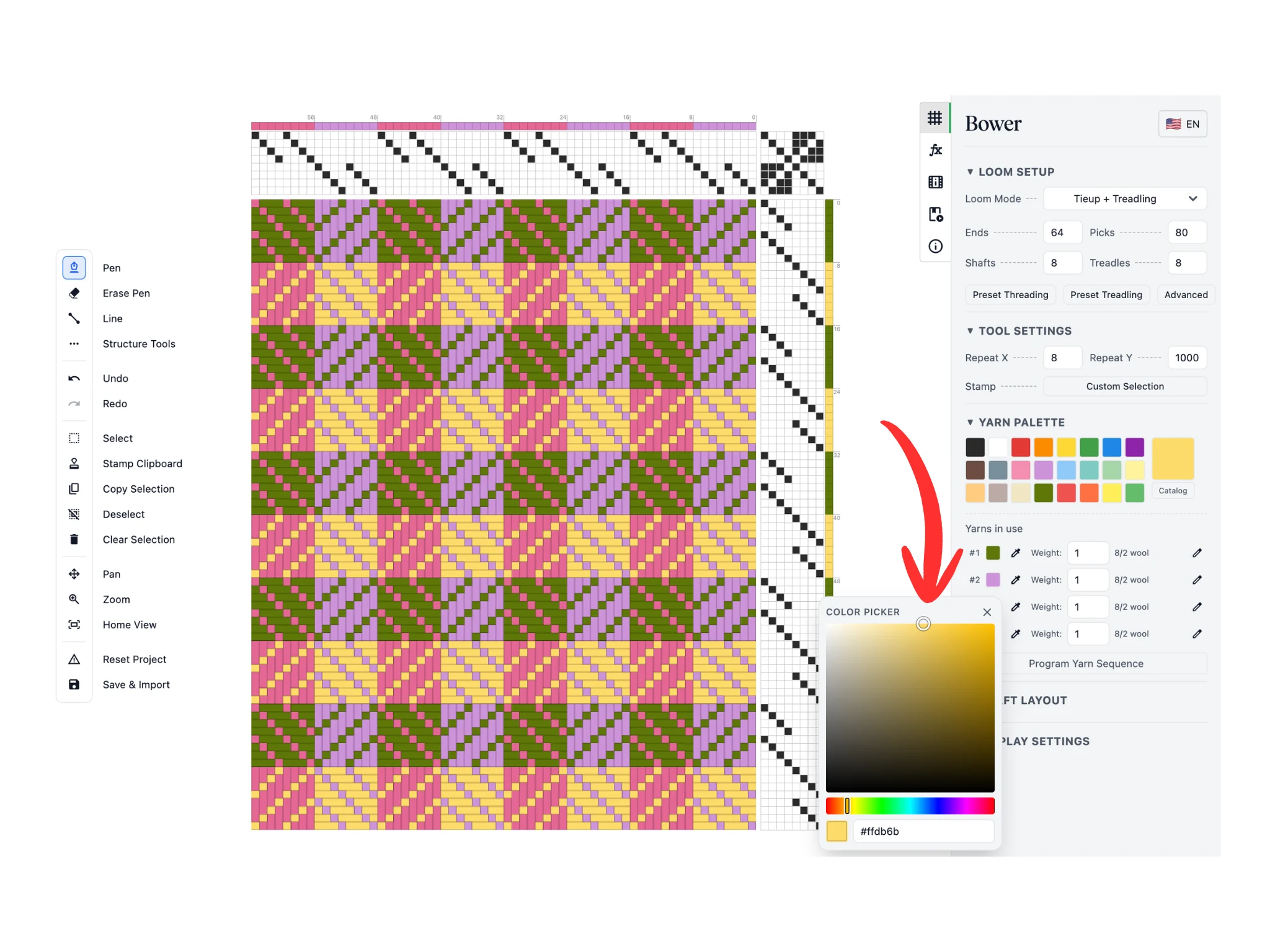
The color picker adjusting hue, saturation, and value with live drawdown updates

This opens a color picker pop up where you can change the hue, saturation, and value of that particular yarn's color. You can see the color changes live update in the drawdown.

Once you are satisfied with your changes, click the "X" button to close the color picker pop up.

These are the basic methods to set up color in Bower.

Step 7
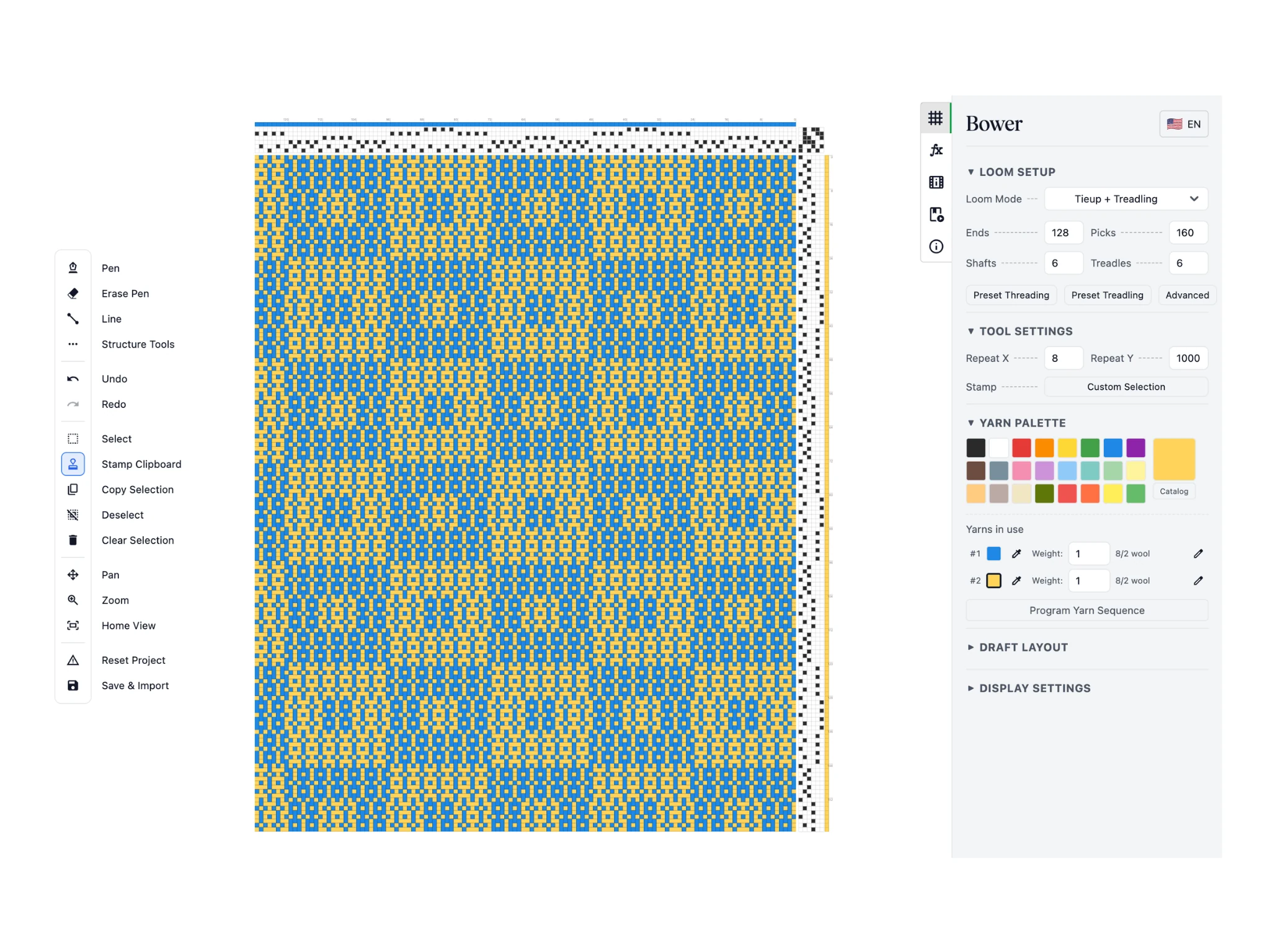
A six-shaft summer and winter draft loaded in Bower

For the next part of this tutorial, we will use a six-shaft summer and winter draft to demonstrate more complicated color assignments.

You can get the .BOWER file from here and load it in the Save & Import button.

Step 8
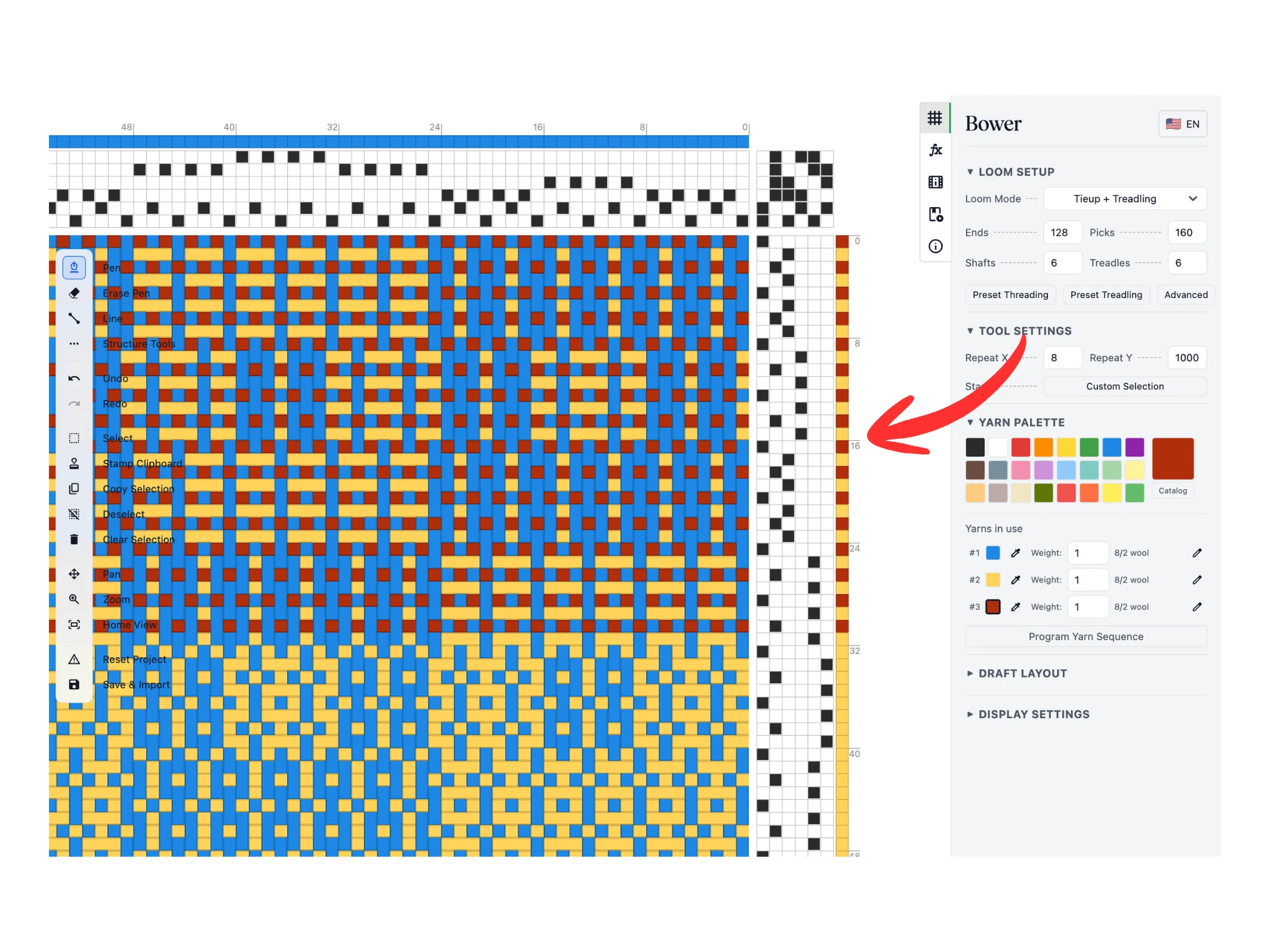
Coloring the tabby picks on treadles 1 and 2 in deep red

A characteristic feature of summer and winter weaves are the tabby picks on treadles 1 and 2 that tie down the warp floats. These are often done with a different yarn and yarn color.

In this tutorial, we've chosen a deep red and colored all picks with treadles 1 and 2 for the first 32 picks for now.

Step 9
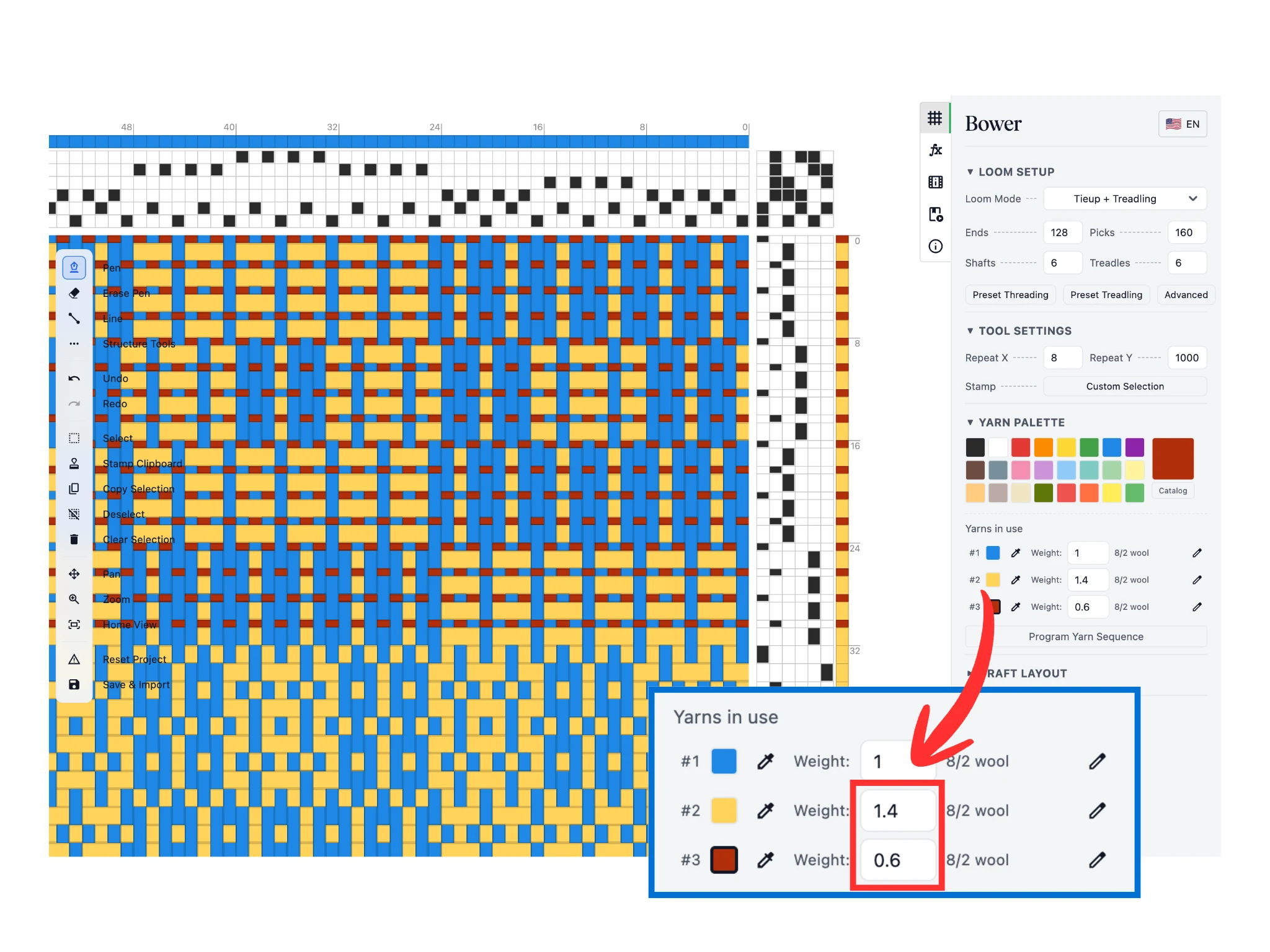
Adjusting yarn weights in the Yarns in use section

Under the "Yarns in use" section, we can adjust the weight of each yarn which is the relative ratio of how thick they appear in the editor. Set tabby picks to use a 0.6 weight and pattern picks to use a 1.4 weight.

This feature lets you better visualize your weaving draft if it uses yarns of varying thicknesses.

The rest of the tutorial involves learning programming to automatically set your color assignments. If this does not interest you, you can stop the tutorial here! The skills you've learned so far are enough to carry you far.

If you are interested, please proceed...

Step 10
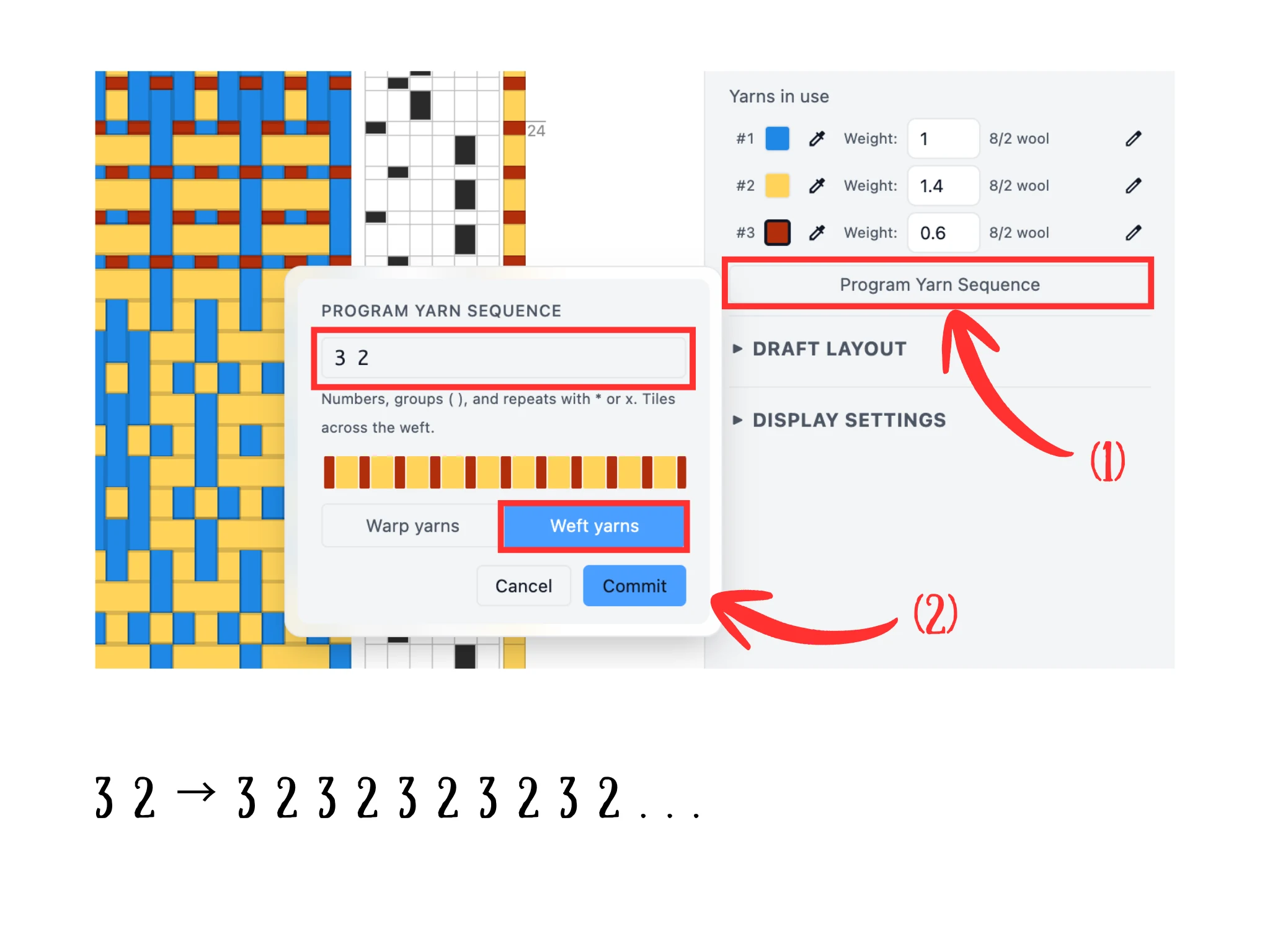
The Program Yarn Sequence window with a 3 2 weft formula

Manually using the Pen tool to assign hundreds of weft color assignments gets tedious fast. We can enter a formula to do so instead via the "Program Yarn Sequence" button (1) which opens a pop up window.

Note that our yarns under "Yarns in use" are numbered #1, #2, #3, and so on. These numbers identify the yarns. So in the tutorial, yarn 1 is blue, yarn 2 is yellow, and yarn 3 is red as shown in the image.

To program a yarn sequence, enter a sequence of numbers. So for a sequence 3 2, we get yarn 3 (red) and then yarn 2 (yellow). The software auto-repeats the sequence entered. So 3 2 expands to 3 2 3 2 3 2 ... which gives us alternating tabby and pattern pick assignments.

Make sure the "Weft yarns" option is selected and click the Commit button.

Step 11
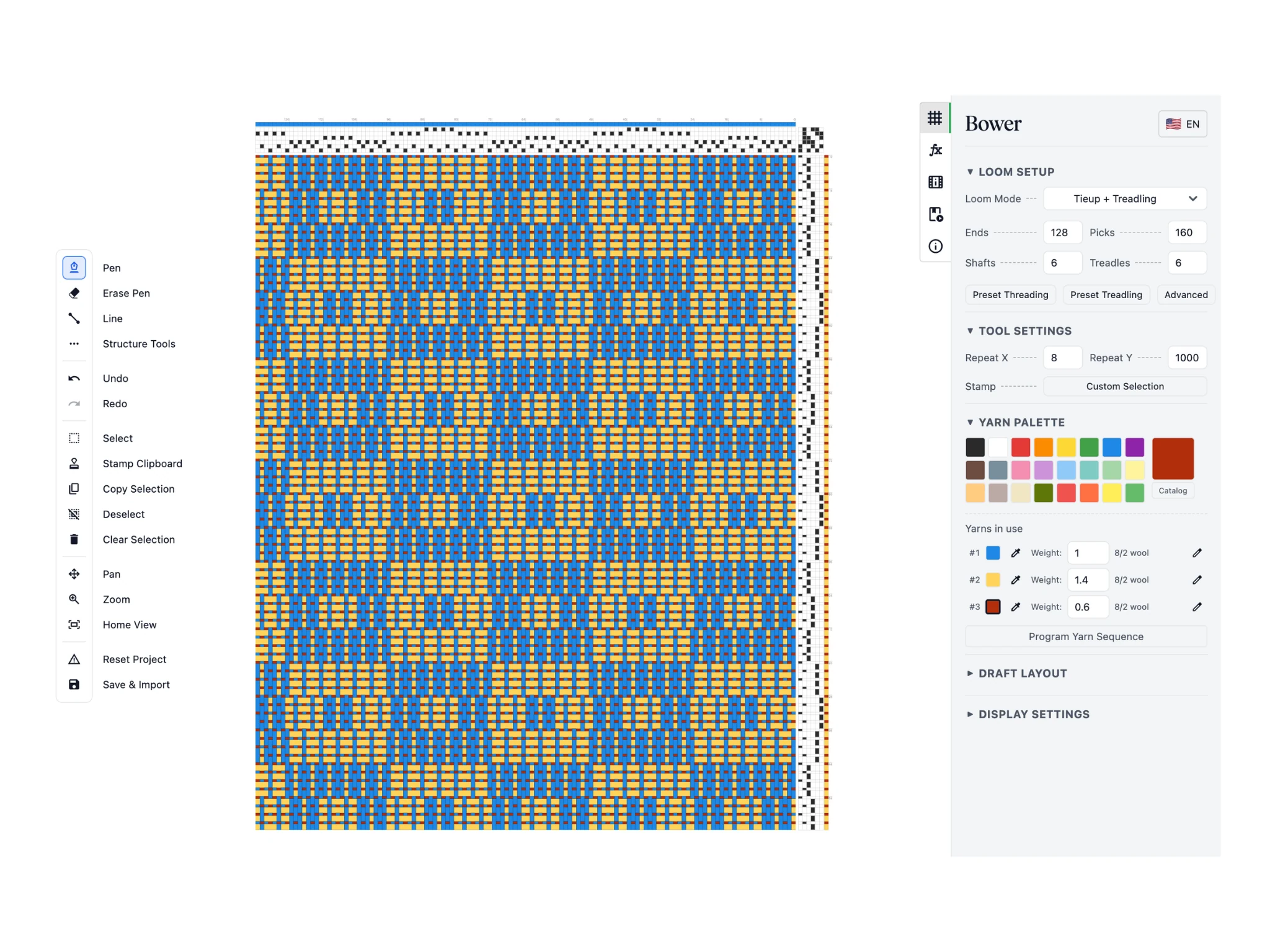
The programmed yarn sequence applied to all picks

Now, observe how the programmed yarn sequence has been assigned to all our picks.

Step 12
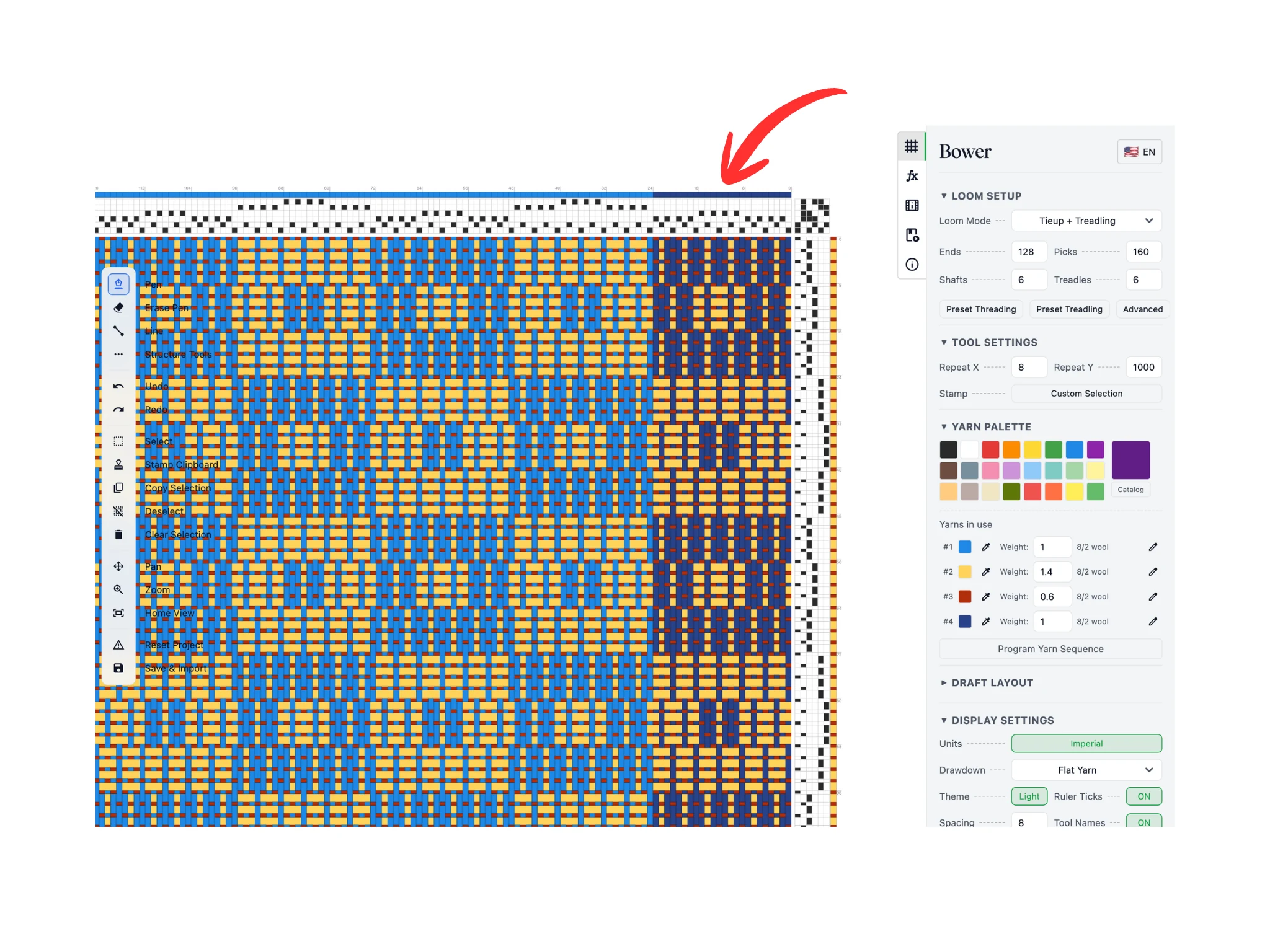
Two shades of blue set up to alternate across the checker motif

We will now demonstrate more advanced yarn sequences you can program to expedite your coloring workflows.

We've set the first column of blocks in the checker motif to a darker color via warp color assignments. The goal is to alternate between the two different kinds of blues for our motifs.

Step 13
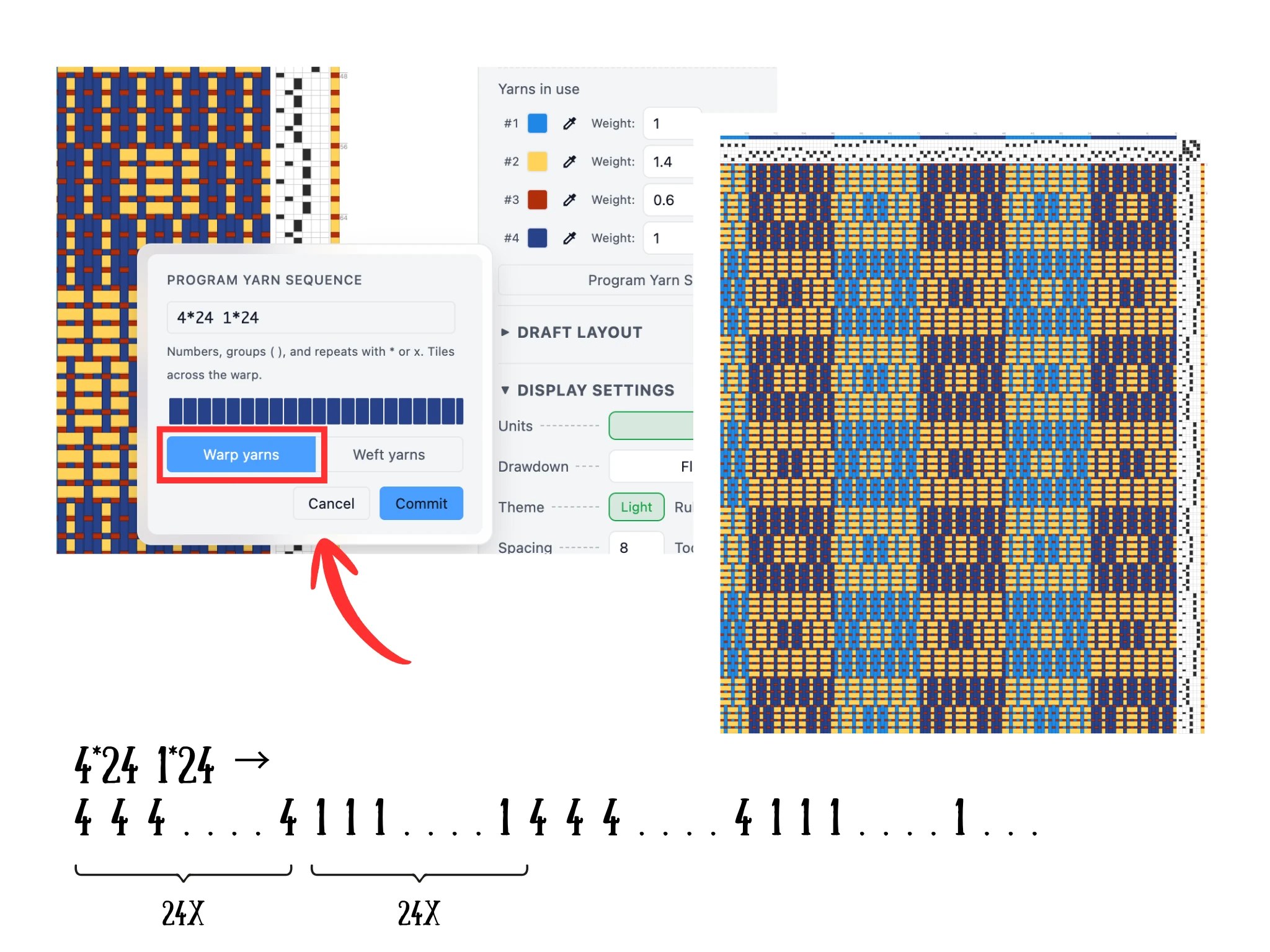
Using the asterisk multiplication formula 4*24 1*24 for warp colors

Note that the dark blue yarn is #4 and the light blue yarn is #1. We can use asterisks, i.e. "*", to denote multiplication of a yarn. The format is [yarn number] * [number of times].

So the formula 4*24 repeats yarn 4 for a total of 24 times. Accordingly, the formula 1*24 repeats yarn 1 for a total of 24 times. Putting them together, 4*24 1*24 gives us 24 threads of dark blue then 24 threads of light blue and this repeats.

Remember to choose the "Warp yarns" option and then click on Commit. Observe the editor and how this has achieved the desired color assignments.

Step 14
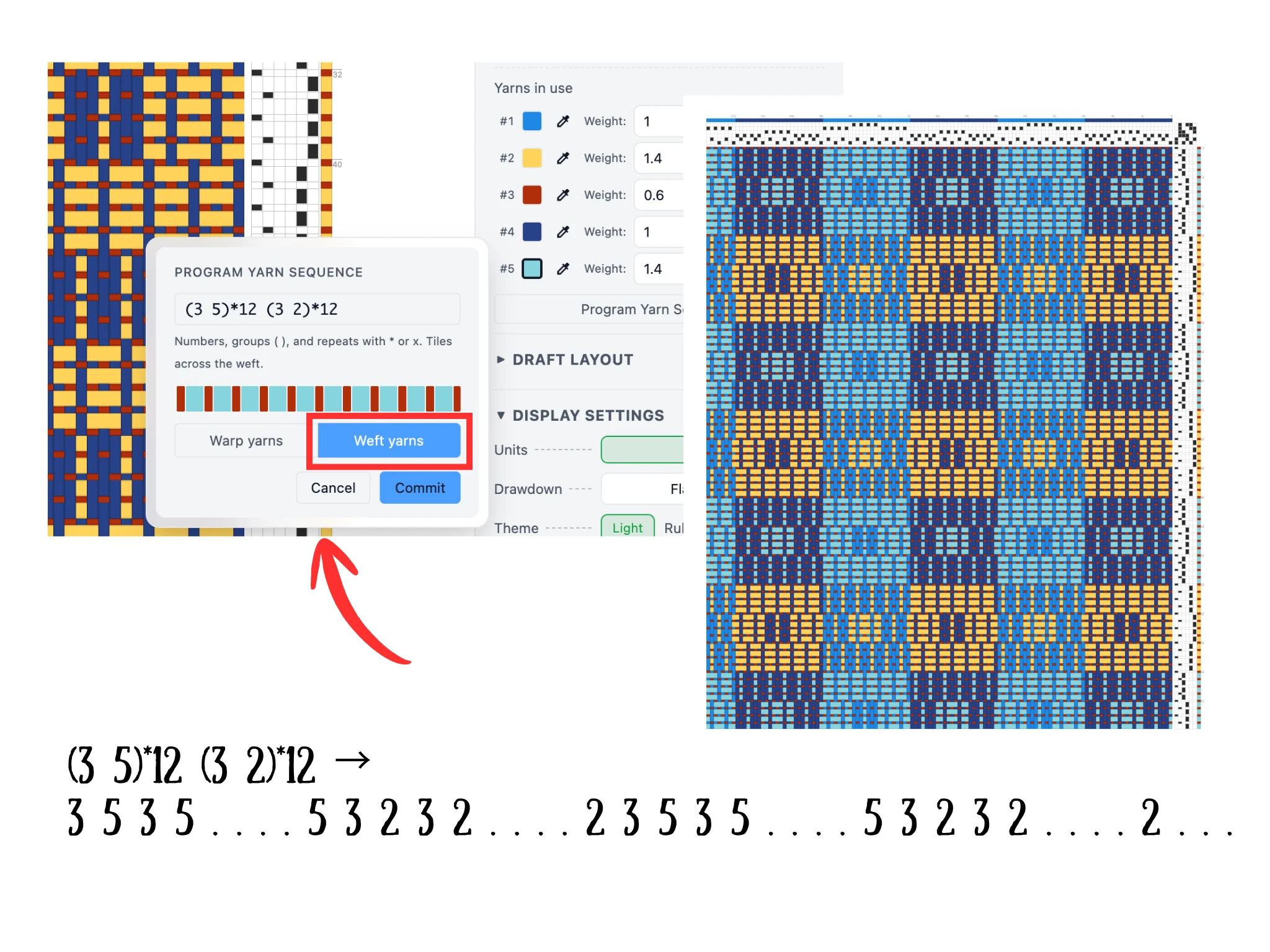
Using parentheses to group yarns in a sequence formula

We can add an aqua color to alternate with the yellow rows of blocks. This is tricky because we need to have the pattern pick alternate colors while maintaining our tabby pick color.

The formulas support making yarn sequence groups using parentheses. First click aqua into the drawdown, e.g. one pattern pick, to add it to the Yarns in use section. For our tutorial it is yarn #5.

A formula (3 5) has the 3 and 5 are grouped such that when we multiply, e.g. (3 5) * 2, we get 3 5 3 5. This becomes powerful when we combine two such groups, e.g. (3 5)*2 (3 2)*2 which gives 3 5 3 5 3 2 3 2.

For the summer and winter draft in the tutorial, use the sequence (3 5)*12 (3 5)*12 which will give us our alternating aqua and yellow rows with the red tabby ground.

Step 15
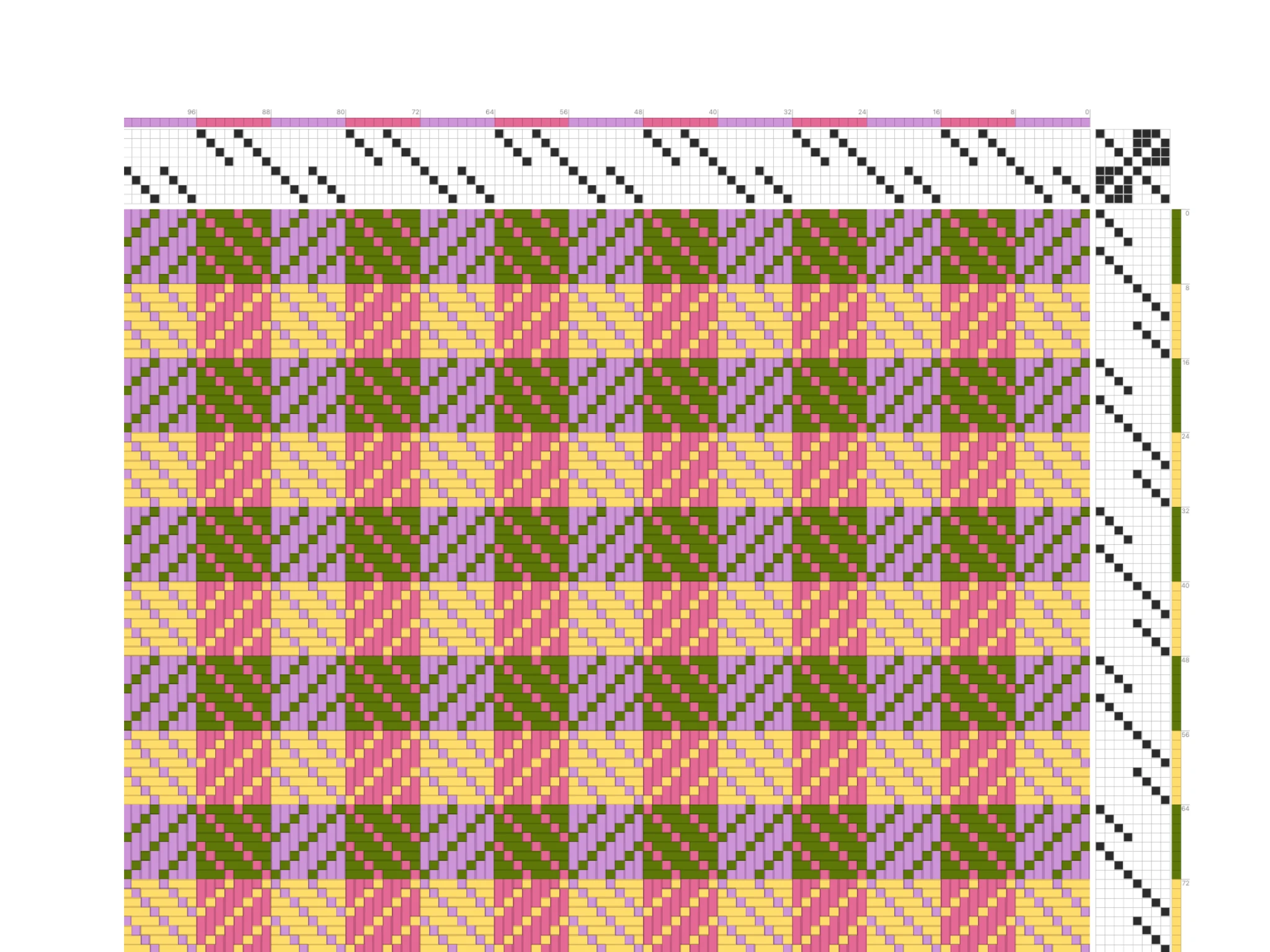
A final draft using a 2 3 formula for alternating tabby and pattern colors

Finally, we are sharing one more draft that uses alternating tabby and pattern colors set with a 2 3 formula. You can see how useful programming yarn sequences is!

Programming yarn sequences in Bower are a powerful and fast way to manage color assignments in your warp and weft. Congratulations on finishing this tutorial learning Bower!

If you would like help with this advanced feature and have a license, please email [email protected] and our genius bar support will help you ASAP.

Bowerライセンスには、ブロック置換、ダイレクト編集、糸シミュレーション、高度なレンダリングが含まれ、29ドルです。このプロジェクトを支援するために、ワンタイムライセンスの購入をご検討ください!

購入する